


An APK can look legitimate, install without errors, and still be the wrong file for your test. APK hash verification provides a byte-level comparison before static analysis, sandboxing, or installation on a lab device.
That hash check is quick, but it only helps when you compare the file with a reference from a trusted publisher channel. You should also inspect the APK’s signing certificate, since matching bytes and a trusted signer answer different questions.
Start with the original download, then build your testing workflow around evidence you can reproduce.
Key Takeaways
- A SHA-256 hash confirms that your APK matches the publisher’s referenced bytes, but it does not prove that the app is safe or trustworthy.
- Use a checksum from an official, controlled release channel and verify that it belongs to the exact APK, version, and artifact type you downloaded.
- Run local hash checks and
apksigner verify --verbose --print-certs, then compare the signing certificate fingerprint with a known publisher record. - Stop and investigate any hash mismatch, unexpected signer, or unclear source history before installation or testing.
- Preserve the untouched original, record the acquisition and verification evidence, and analyze only a separate working copy within an authorized, isolated environment.
Why APK Hash Verification Comes Before Testing

A hash identifies an exact file
A SHA256 cryptographic hash is conventionally written SHA-256, and it converts a file of any size into a fixed-length value. For APKs, SHA-256 is the practical default. Cryptographic hashes produce an entirely different value when one byte changes.
NIST recommends SHA-256 as the minimum for interoperable hash-function uses, as outlined in its policy on secure hash functions. Older release pages may list MD5 or SHA-1 checksums, but neither should be your primary integrity check for a new security workflow.
A successful hash check shows that your local APK contains the same bytes as the publisher’s referenced artifact. It can catch interrupted downloads, accidental file swaps, repackaging, and unwanted changes after release.
A matching SHA-256 confirms matching bytes. It doesn’t establish that the app is safe, respects privacy, or is being used legally.
Integrity is different from safety
An APK can have a correct hash and still contain harmful code. That happens when the publisher intentionally ships invasive tracking, weak authentication, or malware. Conversely, an unknown file can be a useful research sample, but it must remain classified as untrusted.
Treat the result as one evidence point. File integrity answers, “Is this the artifact I expected?” Security testing then asks what the artifact does, what it can access, and whether its behavior stays within the test scope.
This distinction matters with remote-access trojans, stalkerware, and aggressive parental-control products. A known hash may authenticate a particular build, yet it cannot make covert monitoring acceptable or safe.
Find a Checksum You Can Trust
Use the publisher’s controlled release channel
The strongest reference comes from the developer’s official release download page, verified documentation, or a repository controlled by the project. An official project-controlled GitHub Releases page can be useful if it publishes checksums with the exact version and file name. An IzzyOnDroid listing or any mirror still needs provenance verification.
Record the source URL, download time, version number, file name, file size, and published digest. If you built the application package yourself, record the Android Studio version used for a reproducible build. If the vendor offers a PGP-signed release manifest or signing certificate, preserve its digital fingerprint too.
Package names and icons are weak proof. Attackers can reproduce both. A search result, chat attachment, file-hosting mirror, or link directory can help you discover a project, but none proves an authentic APK. Treat a page label, including Verified Tor Onion Links, as a discovery aid rather than proof of provenance.
When no publisher checksum exists, don’t invent confidence by comparing checksums from unrelated mirrors. A hash check is meaningful only when the reference comes from a trusted source. Label the source as unverified, keep the file isolated, and obtain written authorization before analyzing it.
Check the hash algorithm and artifact type
A SHA-256 digest contains 64 hexadecimal characters. A SHA-1 digest has 40, and MD5 has 32. Treat the SHA-1 value as supplementary, not as the preferred artifact reference. Compare like with like. An MD5 value cannot confirm a SHA-256 result, even if both came from the same file.
Also confirm that the digest belongs to the exact artifact you downloaded. Android releases can include a universal APK, device-specific APKs, split APKs, an Android App Bundle, or an archive such as APKM or XAPK. Each file has its own digest.
The OWASP Android platform overview describes Android’s certificate-based app-signing model. Use the file hash to validate the artifact, then use signing data to evaluate the claimed publisher.
Run Local Hash Checks on Windows, macOS, and Linux
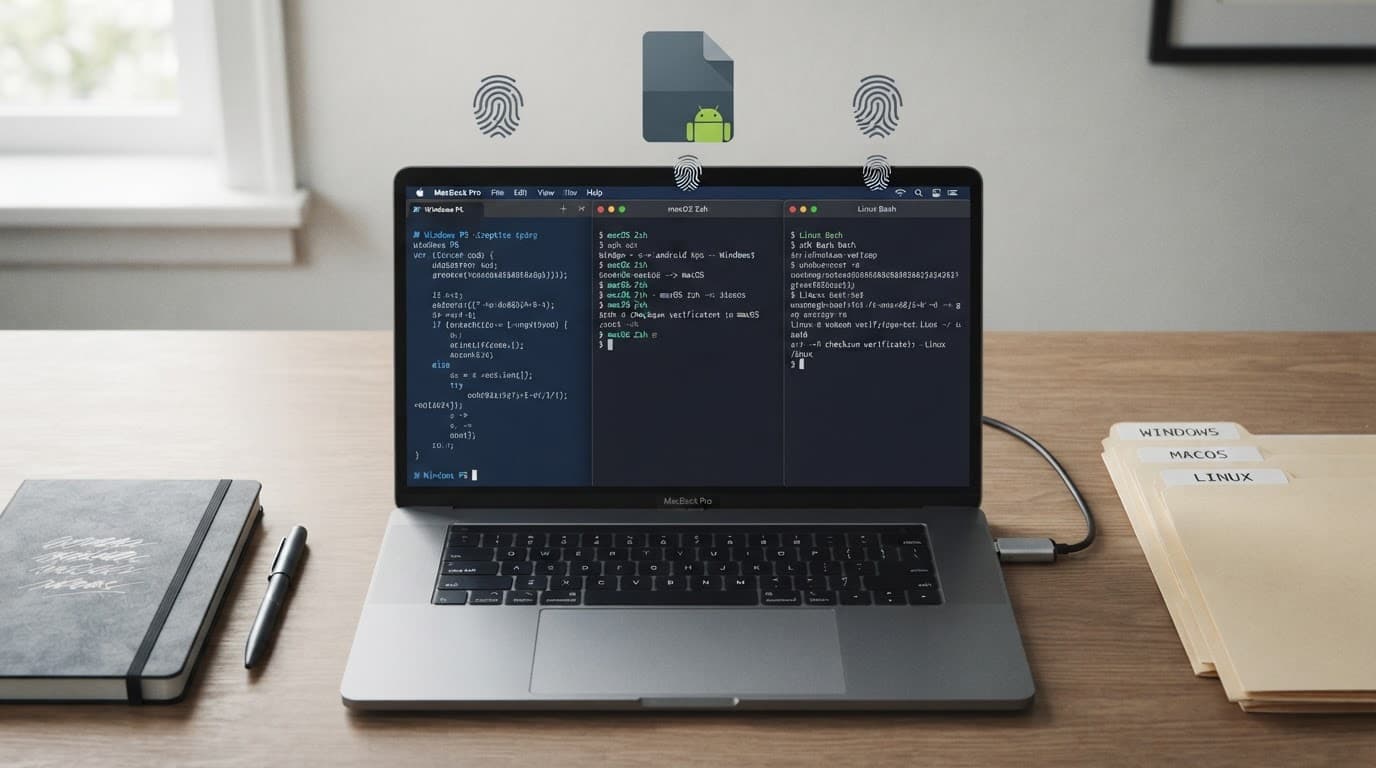
Calculate a local SHA-256 digest
Use a command-line session in the directory containing the original file. Quotes help when a path or file name contains spaces.
| System | Command | Expected result |
|---|---|---|
| Windows PowerShell | Get-FileHash -Algorithm SHA256 .\sample.apk | A SHA-256 hash and file path |
| Windows Command Prompt | certutil -hashfile sample.apk SHA256 | The SHA-256 hash in grouped text |
| macOS | shasum -a 256 sample.apk | The hash followed by the file name |
| Linux | sha256sum sample.apk | The hash followed by the file name |
These commands calculate the digest locally. They don’t upload the APK to a scanning service, which matters when a sample may contain private data or fall under a customer agreement.
Some Android Hash Checker interfaces use labels such as MD5 SHA CRC-32. Their choices may include MD5, SHA-1, SHA-256, and CRC-32; use SHA-256 as the preferred evidence value. When a desktop is unavailable, choose an auditable open-source tool from its original project page or a well-known repository. Android Studio offers a GUI alternative through APK Analyzer, but formal work is better supported by a desktop command and saved terminal output. Save the command, timestamp, and file path with that output to create an auditable file integrity record.
Compare every character, not the overall shape
After calculating the digest, copy the publisher’s SHA-256 value into a plain-text note and use a hash check to compare it with your result. Compare all 64 characters against your result. Case does not matter for hexadecimal output, but missing characters, spaces in the middle, or an extra line break can mislead a manual review.
A mismatch means you should stop before installation. Download the file again from the publisher’s documented channel. If the mismatch remains, confirm the version, release date, and whether the vendor replaced the build without updating the reference value.
Repeat the hash check after moving the sample to a new machine. Repeat it again after restoring the file from storage, and preserve the resulting checksums with your notes. A later mismatch can reveal an accidental handling error before it affects a test result.
Verify the APK Signing Certificate Too
Use apksigner for Android-aware verification
Android Studio’s SDK Manager can install the software development kit and its Build-Tools package. Find the apksigner tool in the SDK’s build-tools folder, then run apksigner verify --verbose --print-certs sample.apk.
Android documents the apksigner verification options, including the basic apksigner verify sample.apk command. The verbose output helps verify APKs and provides more evidence for a case file, including verified signature schemes, signer count, and certificate digests.
Save the output with the SHA-256 result. The signing certificate’s SHA-256 value is the signer’s digital fingerprint. Pay attention to the certificate SHA-256 digest and the lines that report v1, v2, v3, or v4 verification. If the expected signer fingerprint is available from the vendor, compare the signing certificate’s fingerprint with the expected publisher record, character for character.
A valid signature means Android can verify that the file hasn’t changed since the signer created it. Together, the hash and signer evidence support APK authentication, but they don’t prove the signer is reputable or the app is safe. Android app certificates are commonly self-signed, so trust comes from matching a known publisher certificate rather than a public certificate authority.
Understand v1, v2, v3, and Google Play signing
The v1 scheme uses JAR-style signing data in META-INF. Newer schemes provide stronger APK-wide coverage. Android’s APK Signature Scheme v2 documentation explains that changes outside the APK Signing Block invalidate a v2 signature.
Android 9 and later support v3, which also supports signing-key rotation. A v4 signature may accompany an APK with a separate .idsig file for incremental installation. Don’t interpret an absent v4 result as proof that an ordinary release APK is unsafe.
In the Google Play distribution context, developers sign uploads with an upload key, while the platform signs delivered APKs with the app signing key. The Play App Signing guide shows where developers can view the SHA-1 digest and SHA-256 fingerprint for that platform-generated key.
Therefore, a Play-delivered split APK may not match a developer’s locally built APK hash or upload-key certificate. Compare the downloaded artifact against the correct distribution channel and signer.
Resolve Hash Mismatches and META-INF Warnings
Check for the wrong artifact first
When a hash check fails, confirm the artifact type and version first. You may have downloaded a newer build, fetched an architecture-specific split, or extracted an APK from a container archive. Published checksums validate only the exact file named by the publisher.
Stores commonly deliver split packages based on device configuration. Don’t compare an extracted base APK with a checksum for a universal APK unless the publisher states they’re identical.
An APK can also change after re-compression, adding a file, removing metadata, or signing again. Those changes may be intentional in a research corpus, but the sample is then a modified derivative, not the publisher’s original release.
Treat META-INF warnings as evidence, not a verdict
Some ZIP or JAR utilities report unverified entries under META-INF. Those messages often involve v1 JAR signing, which tracks manifest entries differently from v2 and v3 APK signing. A generic archive verifier may not understand Android’s newer signing schemes.
Run apksigner verify --verbose --print-certs before drawing a conclusion. Then check the APK’s minSdkVersion and the Android versions relevant to your test. Legacy compatibility may require a valid v1 signature, while a modern APK can rely on v2 or later.
Don’t try to fix the package by editing archive contents or running alignment after signing. Android’s zipalign documentation states that alignment must occur before signing when apksigner is used. Post-signing changes invalidate signature protection.
Preserve the Original APK and Your Chain of Custody
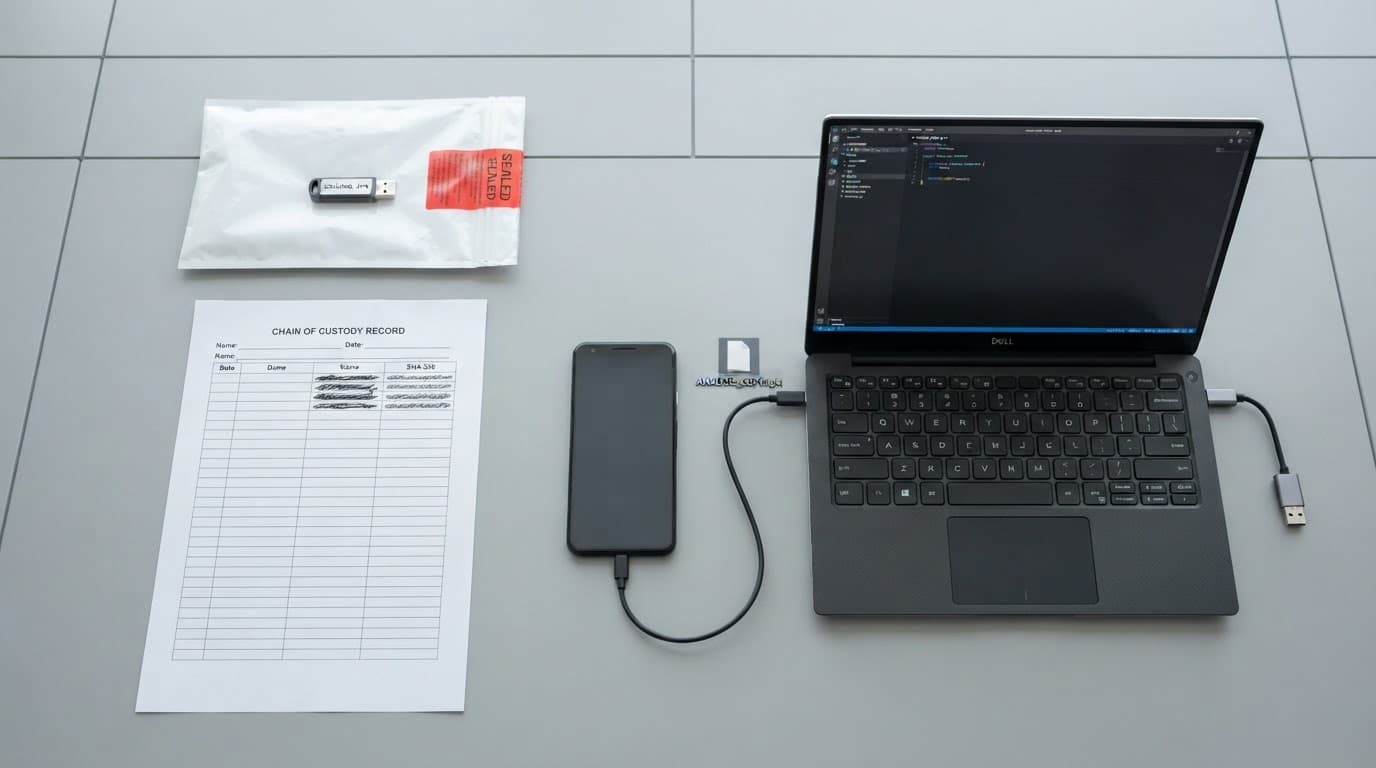
Keep one untouched acquisition copy
Store the initial download in a restricted folder, then run a SHA-256 hash check immediately. Set it aside as the original, then make a separate working copy for decompilation, manifest review, and dynamic testing.
Your record should include:
- The authorized project or case identifier, named owner, and testing window.
- The source URL, original filename, acquisition time, size, SHA-256 digest, and the source for the expected checksums.
- The package name, version, signing certificate SHA-256 fingerprint, and
apksigneroutput. - Every transformation made to a working copy, including extraction, resigning, or instrumentation.
This record lets another reviewer recreate the starting point. It also prevents a modified lab copy from being mistaken for an acquired sample.
Keep research lawful and proportionate
Only test software, accounts, and devices you own or have explicit permission to assess. Written scope should name the app, target environment, allowed methods, and time limits. A paid service such as Pro Ethical Hackers For Hire cannot replace written authorization from the system owner.
A phone monitoring product might be a disclosed enterprise or family-safety application. It can also become stalkerware when deployed without informed consent. Likewise, a listing that calls itself a mobile hacking tool deserves careful source review, not automatic installation.
Apps that access messages, location, credentials, microphones, or cameras involve highly sensitive data. Never test those capabilities against another person’s device without clear, documented permission. Don’t follow invitations to Download Pathfinder Rat or deploy remote-access software outside an isolated, authorized research environment.
Put Verification Into the Testing Workflow
Verify APKs and review certificate evidence before reverse engineering tools touch the sample. OWASP’s mobile security test catalog can help structure the later assessment. The recorded digest and signer evidence provide APK authentication and identify the exact artifact for the authorized test.
- Confirm authorization, scope, owner, package name, and intended version before acquiring the APK.
- Download from the publisher’s official channel or a documented evidence source, then retain the original file.
- Calculate the SHA-256 digest immediately, then complete a hash check against a trustworthy published digest.
- Run
apksigner verify --verbose --print-certsand record every signer fingerprint and verification result. - Stop and investigate any mismatch, unexpected certificate, invalid signature, or unclear source history.
- Copy the validated file into a separate lab workspace for static analysis and dynamic testing.
- Use a dedicated test device or emulator, isolated test accounts, and network controls that match the approved scope.
If Android Studio produced a comparison build, record it separately from the downloaded artifact.
If research requires a known modified or malicious sample, state that purpose in the record. The original hash still matters because it identifies the exact specimen under review.
Final Check Before Authorized Testing
A strong verification process starts with a trustworthy source, checks the file locally, and confirms the signer’s digital fingerprint. Together, these steps support file integrity and protect your evidence before you inspect code or run the app.
Keep the original intact, analyze a copy, and treat every mismatch as a reason to pause. The best security finding is hard to defend when nobody can identify the exact APK that produced it.
FAQs
Does a matching APK hash prove the app is safe?
No. It only shows that your file matches the referenced file. The publisher may still ship vulnerable, invasive, or malicious behavior, so continue with authorized static and dynamic analysis.
What should I do when no official checksum is available?
Record that the source is unverified. Compare the certificate with a known publisher fingerprint if possible, preserve the source details, and only test the sample in an approved isolated environment.
Why does the SHA-256 file hash differ from the certificate fingerprint?
They identify different things. The file hash covers the entire APK’s bytes, while the certificate fingerprint identifies the certificate. Both can be valid and normally won’t match.
Can I verify an APK entirely on an Android phone?
You can calculate SHA-256 with a reputable Hash Checker, but desktop tools produce better records and support apksigner. For sensitive assessments, preserve command output and validate the certificate before installation.