
A USB cable can do far more than charge an Android phone. With the wrong setting enabled, it can open a privileged connection to a computer that should never have access.
Android USB debugging security starts with limiting that connection, approving only trusted workstations, and removing access when the task ends. Developers need ADB for testing, but most personal and managed devices should keep debugging off.
The safest habit is simple: treat debugging as temporary administrator access, not a permanent convenience setting.
Key Takeaways
- Treat USB debugging as temporary administrator access, not a permanent convenience setting.
- Approve ADB connections only from a personally controlled, patched, and protected workstation after reviewing the RSA fingerprint.
- Disable USB debugging and wireless debugging when testing, support, or diagnostic work ends.
- Revoke stored ADB authorizations when a computer changes hands, is repaired, or is no longer trusted.
- Keep USB debugging, OEM unlocking, root access, and file-transfer modes separate because each creates different security risks.
Android USB debugging security starts with knowing what ADB can do
USB debugging allows a computer to communicate with an Android device through the Android Debug Bridge, usually called ADB. Developers use it with Android Studio for app development, installing test builds, inspecting logs, testing app behavior, capturing diagnostics, and running approved ADB shell commands.
That access is useful because it shortens the feedback loop during app development. It can also help IT teams diagnose a managed device or collect system diagnostics during a documented support session.
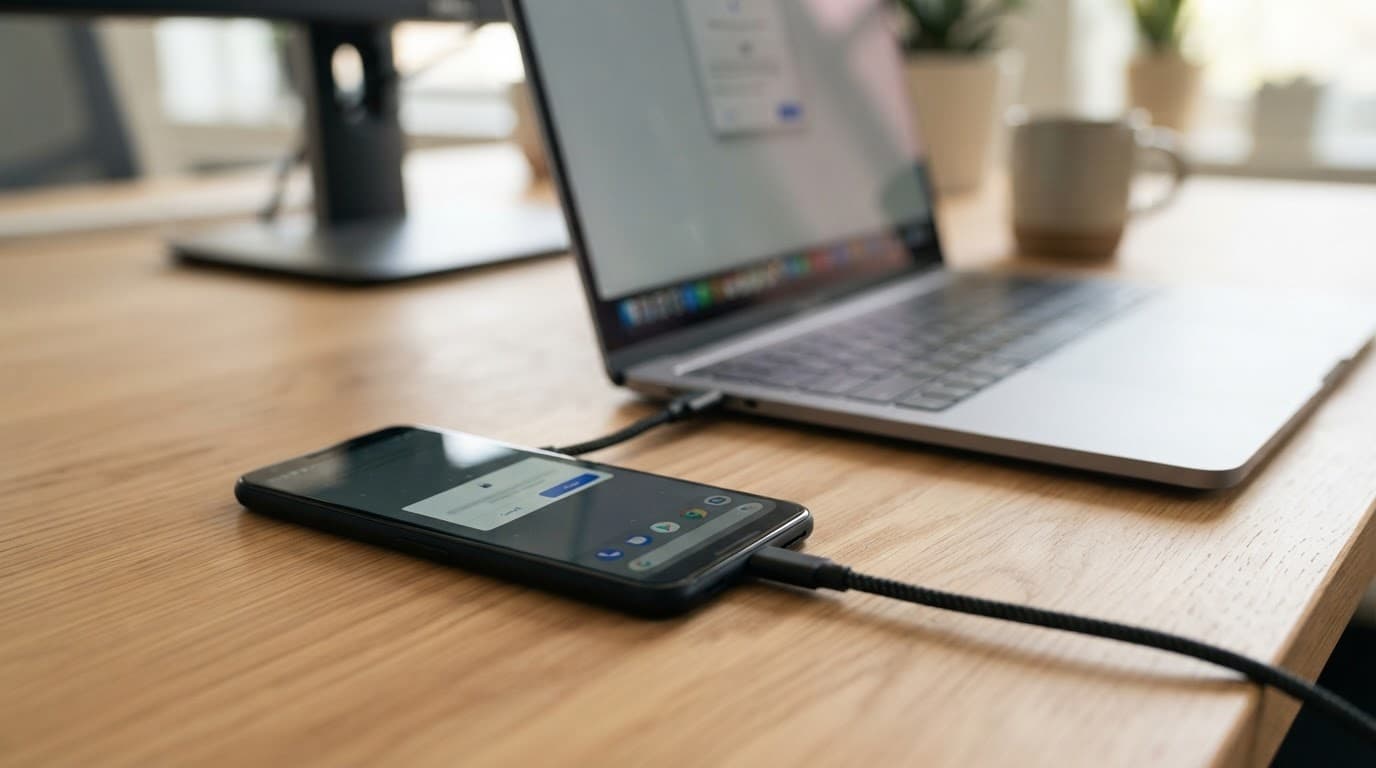
However, USB debugging is not ordinary USB media mode. An authorized computer can request diagnostics, install packages, communicate with debuggable apps, and issue system-level commands. Production Android protections still constrain those commands.
On Android 15 and Android 16 devices, the basic rule remains the same: turning on the developer menu does not automatically authorize a computer. That feature needs its own switch, and each new host needs on-device approval.
Developer options are a container, not a single risk
Android hides Developer options because its settings can change how the device behaves. The menu includes animation controls, mock locations, wireless debugging, bug reports, default USB behavior, and OEM unlocking on supported hardware.
Leaving Developer options visible does not automatically expose private data. Still, it makes high-impact settings easier to change, especially on a shared family tablet, a lost phone, or an unmanaged work device.
The dedicated debugging switch creates the largest direct workstation risk. Google’s secure developer options reference for managed Android deployments uses restrictions and authorization controls rather than treating debugging as a casual user preference. In enterprise environments, a platform such as Hexnode UEM may help enforce debugging restrictions in a managed deployment.
For most people, the right baseline is to disable both the Developer options master switch and USB debugging after any legitimate task is complete.
RSA authorization protects the connection, but trust can outlive the cable
When a new computer attempts to use ADB, Android displays an “Allow USB debugging?” prompt. The prompt includes an RSA key fingerprint that identifies the host computer’s ADB key.
If the device owner approves it, Android stores that computer’s public key. This RSA key authentication lets the same host authenticate later without another prompt. Stored host trust is central to Android USB debugging security. It also prevents an unknown computer from gaining unauthorized access merely because someone plugged in a cable.
An RSA approval is a durable trust decision, not a one-time cable check. Revoke it when the computer changes hands, is repaired, or might be compromised.
The protection only works when the person holding the phone reads the prompt and rejects unexpected requests. Never approve a fingerprint without a planned debugging session. Also avoid “Always allow from this computer” on shared, borrowed, public, or employer-owned machines unless formal policy permits it.
A previously authorized laptop creates a different risk than an unknown laptop. If an attacker obtains both the phone and that trusted computer, they may reconnect through ADB without a fresh approval prompt. RSA trust does not protect against security vulnerabilities on a compromised workstation. Malware on an authorized workstation can also attempt malware injection, capture debugging output, or install an unwanted application.
An approved ADB connection does not reliably bypass a modern Android screen lock by itself. File-based encryption, app sandboxing, device state, user profiles, and management policy still limit what can be read or changed. After a reboot, credential-encrypted data remains protected until the owner unlocks the device.
Still, a lock screen is not a reason to leave stale computer authorizations in place. NinjaOne’s overview of USB debugging risks highlights the practical concern: an unlocked device connected to an untrusted or compromised host can expose data and accept unsafe actions.
Wireless debugging deserves the same care. It pairs a device with a computer over a local network, often through a pairing code. Disable it when testing ends, especially on networks shared with guests or contractors.
Enable USB debugging only for a planned, trusted session
Android manufacturers place the activation menus in slightly different locations, including the build number path. Google Pixel devices usually show the relevant menu under Settings > System, while Samsung devices commonly place it under Settings after activation. Users may need the setting temporarily for app development, support, testing, or diagnostics.
The activation sequence is similar on current Android phones and tablets:
- Open Settings, then open About phone or About tablet.
- Find Build number. On some devices, it sits inside Software information.
- Tap Build number seven times and enter the screen-lock PIN, password, or pattern when Android asks.
- Return to Settings and open Developer options.
- Turn on USB debugging only after the support, testing, or diagnostic work is ready to begin.
- Connect only a personally controlled, patched, password-protected computer, then review the RSA authorization prompt before approving it.
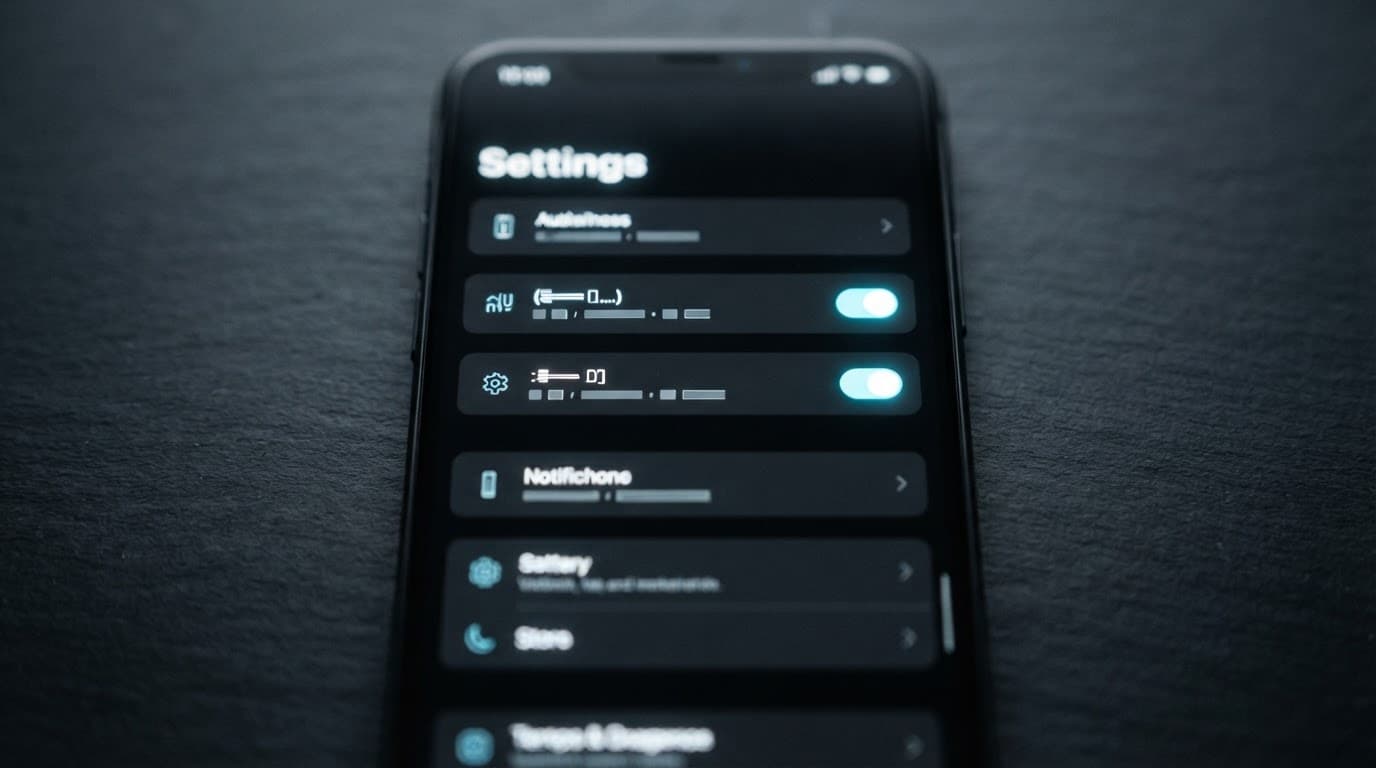
Treat the build number activation as temporary, and perform it only when the planned task is ready.
The secure workflow continues after the task. Disconnect the cable, turn USB debugging off, and revoke temporary authorizations in Developer options if the host was temporary or no longer trusted.
For routine copies, use the regular USB preference menu and select File Transfer only when needed. Charge-only mode reduces casual data exposure, while MTP file transfer limits access to media and shared storage selected by the user. Charge-only mode, MTP, and ADB are separate choices, so changing a normal USB mode does not disable an already authorized host.
Developers who use a dedicated workstation can keep an authorization for that specific machine. Even then, protect the host with full-disk encryption, automatic updates, a strong login, endpoint security, and separate accounts for daily activity. A secure phone cannot compensate for a compromised development laptop.
OEM unlocking, root access, and USB data modes are different controls
Many security mistakes start with treating every advanced Android setting as the same feature. They are not.
| Setting or capability | What it allows | Main security concern |
|---|---|---|
| Developer options | Access to advanced configuration controls | Someone can enable risky features or change device behavior |
| USB debugging | ADB communication with an authorized host | Privileged diagnostics, app installation, and command access |
| MTP file transfer | Access to user-approved shared media storage | Private files may be copied through a physical connection |
| OEM unlocking | Permission to unlock the bootloader later on supported devices | A modified operating system may weaken the device trust model |
| root access | Elevated control beyond normal Android app limits | Apps or users can bypass many platform protections |
USB debugging does not grant root access on a normal production Android build. ADB access is powerful, but it does not automatically provide unrestricted access to every app’s private data or the operating system.
OEM unlocking is separate again. The setting does not unlock the bootloader by itself. It permits a later bootloader-unlock process on supported devices, which commonly wipes the phone and can allow installation of non-standard system images. Keep it off unless you have a documented development need and accept the operational consequences.
Security teams should also watch for rooted devices or an unlocked bootloader, especially in enterprise environments. These states can introduce security vulnerabilities by weakening attestation, app integrity checks, and enterprise controls. That can weaken the device’s security posture, while managed platforms such as Hexnode UEM may help identify these conditions. Guidance on hardening Android against root exploits recommends reducing unnecessary privilege paths and keeping devices patched.
A broken screen does not justify bypassing a device lock. Legitimate data recovery should use a manufacturer-backed repair path, a verified backup, a replacement display, or an ownership-verified service provider. These options avoid a lock bypass.
Practical hardening checklists for people, parents, and organizations
Good Android USB debugging security starts with matching security safeguards to the device owner and the data it holds. A developer’s test handset needs different controls than a child’s tablet or a corporate sales phone.
| Situation | Keep enabled only when needed | Routine security checks |
|---|---|---|
| Personal Android phone | USB debugging, wireless debugging, MTP/media mode | Use a strong screen lock, install updates, revoke old ADB authorizations, and avoid unknown computers or public USB ports |
| Parent-managed device | Developer options for a supervised task | Keep the charging cable under adult control, explain why debugging is restricted, and use transparent family controls with age-appropriate settings |
| Organizational fleet | Debugging for approved support or engineering cases | Apply MDM restrictions, maintain an exception register, limit access by role, and review devices for policy drift |
Personal-device checklist
Use a unique six-digit or longer PIN, or a strong password, alongside biometrics. Biometrics add convenience, but the PIN or password remains the recovery control for many sensitive actions.
Review Developer options after using Android Studio, a repair utility, or a manufacturer diagnostic tool. Turn off USB debugging and wireless debugging, then revoke past authorizations if you no longer recognize every approved computer.
Do not use a public charging kiosk as a data connection. Carry a charge-only adapter or power bank when travel makes public power unavoidable. Also keep the phone updated because physical access attacks often depend on old vulnerabilities.
Family monitoring should be lawful, transparent, and limited to a clear safety need. Treat any offer, including Download Pathfinder Rat, as a security decision requiring informed consent, not a covert installation.
Parent-managed device checklist
Children and teenagers should know that these settings are restricted because they can expose the device to unsafe computers and apps. Clear rules work better than hidden surveillance.
Keep shared tablets physically secured during charging and setup. If a child needs USB access for schoolwork, use a known family computer and switch the device back to charge-only behavior afterward.
Family-management tools should state what they collect and who can view it. Avoid tools that ask for broad accessibility control, hidden installation, or unexplained device-admin permissions. Those requests deserve the same scrutiny as any other high-privilege app.
Enterprise fleet checklist
Corporate-owned, personally enabled devices need stronger controls than personal BYOD phones in enterprise environments. Android Enterprise device provisioning supports device-owner enrollment, while Mobile Device Management can restrict debugging features and set USB behavior. A work profile on an employee-owned phone protects work data, but it shouldn’t control the employee’s personal device.
Use Mobile Device Management or unified endpoint management to apply Android’s debugging-feature restrictions where the enrollment mode supports them. Products such as Hexnode UEM and NinjaOne MDM can help centralize policy enforcement, inventory, compliance reporting, and exception handling.
Where supported, Hexnode UEM may assist with debugging restrictions during device enrollment. Verify the resulting settings on enrolled devices rather than treating any product as a guarantee.
Require a ticket, business justification, named administrator, approved workstation, and expiration time for any debugging exception. Document the device provisioning and enrollment process for each approved device. Role-based access control should limit who can approve those exceptions and use support tools.
For exception audits, Hexnode UEM can help surface inventory and compliance records, but teams should validate them against internal requirements.

NIST’s mobile BYOD practice guide offers a useful governance model: protect data with managed controls while accounting for ownership, privacy, and different device roles. Documented limits support risk mitigation, align controls with compliance standards, and remain more defensible than informal administrator access.
What to do after a suspicious ADB connection
If an unexpected debugging prompt appeared, or a device connected to an untrusted computer, disconnect it first. Then disable USB debugging and wireless debugging, revoke all stored ADB authorizations, and review installed apps for anything unfamiliar.
For a managed phone, preserve details such as the device owner, time, host computer, and observed prompt. An authorized administrator can check enrollment or audit information in a platform such as Hexnode UEM. Wait for the incident team before factory-resetting a work device. Early erasure can interfere with data recovery or forensic review.
Change passwords from a separate trusted device if the phone or connected computer may have exposed account credentials. Review account sessions and multifactor authentication methods as well.
If outside help is needed, use a verified, legally authorized incident-response provider with written scope and evidence-handling requirements.
Frequently Asked Questions
Is USB debugging safe to leave enabled?
It is safest to enable USB debugging only for a planned session on a computer you control. Turn it off and revoke unnecessary authorizations when the session ends.
How do I disable USB debugging?
Open Settings > Developer options and switch off USB debugging. If the device was connected to a temporary or untrusted computer, revoke stored ADB authorizations as well.
Does USB debugging give a computer full access to an Android phone?
No, USB debugging does not automatically provide root access or unrestricted access to every app’s private data. However, an authorized host can install packages, collect diagnostics, and issue powerful ADB commands, so it still requires careful control.
What should I do if I approve an unexpected ADB prompt?
Disconnect the cable, disable USB debugging and wireless debugging, and revoke all stored ADB authorizations. Review installed apps and account activity, and contact an administrator or incident-response team if the device is managed or may have been compromised.
Is wireless debugging safer than USB debugging?
Wireless debugging uses the same general trust model and should be treated with the same caution. Disable it after testing, especially when the device is connected to a network shared with guests, contractors, or unknown devices.
Keep debugging temporary and access intentional
Android USB debugging security depends less on a hidden menu and more on disciplined trust decisions. An authorized workstation, an old RSA key, or an enabled wireless debugging session can matter long after a cable is removed.
Use ADB only when app development or approved support requires it. Keep sensitive devices connected to a controlled workstation, then disable the feature and remove stale trust.
Key Takeaways
- Use a controlled workstation for approved sessions.
- Disable the feature when the session ends.
- Remove stale trust and revoke access that no longer belongs.
FAQ
Is USB debugging safe to leave enabled?
It is safest to enable the feature only for a planned session on a computer you control. Turn it off when the session ends.
How do I disable USB debugging?
Open Developer options, switch off the feature, and revoke authorizations if the device provides that option.