
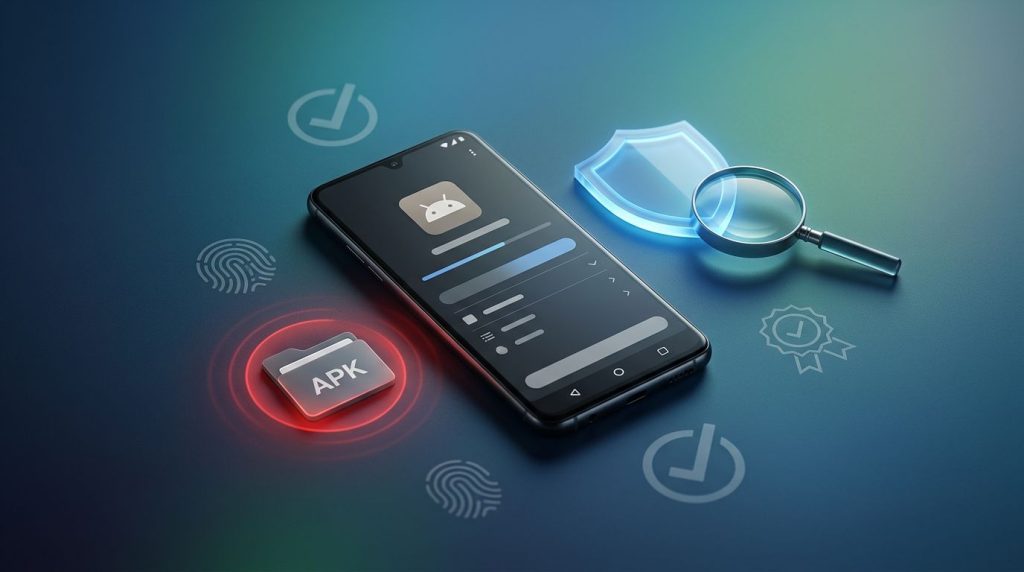
APK files can install in seconds and still cause months of trouble. A familiar icon, convincing login screen, or promise of premium features can hide trojan malware, stalkerware, or a remote-access tool.
Safe sideloading starts with one assumption: an APK is untrusted until you can verify its source, signature, permissions, and update path. That doesn’t make sideloading reckless. It makes it a responsibility.
Whether you’re testing an open-source project, managing company phones, or approving a child’s app download, safe choices happen before the Install button appears.
Key Takeaways
- Treat every APK as untrusted until you verify its publisher, package details, SHA-256 hash, signing certificate, permissions, and update path.
- Download APKs only from documented publisher channels, and avoid cracked apps, modified “premium” builds, random mirrors, shortened links, and unsolicited messages.
- Review special access such as Accessibility, notification access, VPN, device administration, overlays, and permission to install unknown apps before granting it.
- Google’s developer verification and advanced sideloading flow add accountability and friction, but they do not prove that an APK is harmless.
- If an app shows scam pressure or suspicious behavior, disconnect the device, remove special access, scan it, change exposed passwords from another device, and contact your bank when necessary.
Android sideloading safety begins with source and intent
Application sideloading is the formal term for installing an Android app outside the Google Play Store. In everyday terms, sideloading apps means obtaining them from a developer’s website, a GitHub release, an enterprise portal, third-party app stores, email, a messaging app, or shared storage link.
Android Package Kit files are commonly called APK files, and they contain executable app code. Open-source apps, regional releases, and trusted beta builds can all be legitimate reasons to install outside the default channel. However, the same format can carry malicious applications built to steal credentials, intercept one-time passcodes, record screens, or install more software.
Third-party app stores are delivery channels, not proof that every listing is safe. Official app stores provide a baseline of screening, but any channel can host an impersonator, an abandoned app, or an outdated build with security vulnerabilities.
Zimperium telemetry has attributed 38.5% of observed mobile malware to sideloaded applications. Other security comparisons have put malware exposure from sideloaded apps at up to 50 times higher than through official app stores. Those numbers don’t mean every downloaded APK is dangerous. They show why source validation matters more outside a trusted distribution channel.
Sideloading and piracy are separate acts. A direct sideloading release from a developer can be legitimate, while a cracked paid app, modified “premium unlocked” build, or game cheat creates extra risk. Altered files usually have no trustworthy update channel. They also harm developers and can expose users to account bans or legal claims.
What Google’s new sideloading rules change
Google has set September 30, 2026, as the first enforcement date for new developer identity checks in Brazil, Indonesia, Singapore, and Thailand. The requirement applies to certified Android devices running Android 7 or later in those markets. Wider rollout is expected later, so recheck these dates and markets before publication.
The policy adds two layers. Developers distributing apps outside official app stores such as Google Play must verify their identity and register their package names. Users who still want to install apps from unverified developers can use a deliberately difficult advanced flow.
Google’s March 2026 developer verification announcement describes the goal clearly: reduce abuse by people who hide behind anonymous app distribution while preserving an option for knowledgeable users.
How the advanced flow works for unverified developers
The advanced flow is meant to interrupt phone-based social engineering. A scammer often keeps a victim on a call and directs every tap in real time. A reboot and a cooling-off period break that control.
Public descriptions of the process show a sequence similar to this:
- The user enters developer options and begins the process to allow packages from an unverified developer.
- Android asks the user to confirm they are acting voluntarily and are not being coached by another person.
- The phone requires authentication and a restart before the request can continue.
- A mandatory 24-hour waiting period begins, creating a deliberate cooling-off period.
- After the wait, the user must authenticate again with a PIN, fingerprint, or face unlock. This final check uses biometric authentication where available before Android allows installation.
Some builds may offer a temporary permission or an ongoing permission after this process. Interface labels can change by device, Android version, and region. Some builds or documentation may call this entry point developer mode.
Community screenshots of the advanced-flow screens are illustrative rather than authoritative. They show why users should read each prompt instead of following instructions from a caller.
The 24-hour delay can stop real-time coercion, but it cannot prove that an APK is harmless.
The completed advanced flow, including the final cooling-off period, can interrupt real-time coercion for users who still need a deliberate installation path for unverified developers. It does not validate the APK. Authentication and a restart add friction, but they do not provide a malware verdict.
Treat any person who demands immediate sideloading as a serious warning. A bank, delivery company, government office, or technical-support team should never need you to bypass Android warnings during a live call.
Developer verification and limited distribution accounts
A developer distributing outside Google Play needs an Android Developer Console account, identity verification, and registered package names. Google can request a legal name, address, contact details, government identification, and proof of control over each application.
That proof matters because the developer registers an APK signed by their private key. Google Play developers are automatically registered through their existing Play relationship.
Developer verification adds accountability, but it does not certify that every line of code is safe. A verified developer can still make mistakes, lose control of a signing key, or publish an app that requests far more access than it needs.
Google’s limited distribution accounts give students, hobbyists, and small teams a narrower path. They can share applications with up to 20 devices without paying the full verification fees meant for broader distribution. This option fits a lab project, family test group, or internal prototype. It does not replace a public release process.
Open-source advocates have raised fair privacy and access concerns. Identity checks, fees, and setup friction may discourage volunteer maintainers of open-source apps, privacy-focused developers, and third-party app stores such as F-Droid. The F-Droid community discussion shows why critics fear the policy could narrow Android’s open ecosystem. The safer long-term answer is transparent verification with room for legitimate small-scale distribution.
Practical Android sideloading safety checks for every APK
A careful review is a lightweight software vetting step before installation, and it takes only a few minutes. Recovering a bank account or cleaning a compromised work phone takes far longer.
Verify the publisher, file, and signing certificate
Start at the publisher’s own website, official code repository, or documented release channel. If a matching listing exists, compare it with the listing in official app stores. Avoid APK links in search ads, random file mirrors, social media replies, chat groups, and shortened URLs.
Use these checks before installation:
- Match the app name, package name, version number, and release date against the publisher’s official release notes.
- Compare the APK’s SHA-256 hash with a hash posted by the publisher on a separate, controlled page. A hash copied from the same suspicious download page proves nothing.
- Inspect the signing certificate with Android’s
apksigner verify --print-certscommand or a trusted APK inspection tool. Compare the certificate fingerprint with a known earlier release when possible. - Check the file with Play Protect and a reputable multi-engine scanner such as VirusTotal. These software checks reduce risk, but they cannot prove benign behavior.
- Look for split APK packages, device-specific builds, and unusually large downloads. A valid bundle may include several files, while a fake “all-in-one” file may include unwanted code.
- Install unfamiliar software first in a separate user profile or test device with no banking apps, work email, password manager, or sensitive photos.
A valid digital signature establishes continuity with a signing key, not trustworthiness. It does not prove that the developer deserves your trust. If an update asks you to uninstall a legitimate app before installing the new version, stop and check whether the publisher announced a signing-key change.
Review permissions and special access before granting them
Android’s unknown-app permission applies to the source app, such as a browser or file manager. Give it only when you need it, then revoke it after installation. Leaving several browsers and messaging apps able to install packages creates an easy path for a malicious download.

Review ordinary permissions separately, then focus on special access because it can give an app control well beyond normal permissions. Unrelated requests may indicate one of the malicious applications this checklist is meant to identify:
- Accessibility access can read screen content, observe text you enter, and perform taps. Banking trojans often abuse it to approve transfers.
- Notification access can expose one-time passcodes, message previews, and security alerts.
- “Display over other apps” can place a fake login screen over a legitimate banking app.
- Device admin access can make removal harder. A VPN permission can route much of the phone’s traffic through the app’s service.
- Permission to install unknown apps can turn one suspicious APK into a dropper for additional malware.
A keyboard needs keyboard access. A screen reader needs accessibility access. Permission risk depends on whether the request matches the app’s stated job. A calculator that wants notifications, accessibility, microphone, contacts, and device administration has no believable reason for that combination.
Review Android’s Permissions and Special App Access screens after installation. Also check battery use, mobile-data use, VPN settings, device-admin apps, notification listeners, and accessibility services. Remove permissions that no longer fit the app’s purpose.
Keep Android security updates current, leave Play Protect enabled, and update sideloaded apps only through the original trusted source or a matching listing in official app stores. A modified APK that cannot update safely is a liability, not a convenience.
Scam pressure and remote-access malware warning signs
Sideloading scams often begin away from the download page. Banking scams may use a fake parcel alert, impersonate a bank’s fraud team, claim your phone has a virus, or pose as customer support. The attacker creates urgency, keeps you engaged, and tells you to install an app.
Calls that demand screen sharing, remote-control software, accessibility access, or changed Play Protect settings use social engineering tactics. A caller who asks you to bypass Android security warnings is a red flag. End the call, find the company’s public support number yourself, and call from a separate device if needed.
Watch for an unfamiliar app with a generic icon, no launcher icon, rapid battery drain, unexplained data use, persistent overlays, new accessibility services, or repeated requests to disable protections. Any one symptom can have an innocent cause. Several together may indicate malicious applications and warrant a closer inspection.
An app marketed as a phone monitoring tool can be lawful only on a device you own or manage with clear, informed consent. Claims that it is a mobile hacking tool, or a spy app for Android and iPhone, point toward unsafe or unlawful use. Covert tracking of a partner, employee, or adult family member can violate privacy laws and workplace rules.
Do not treat promotions that say Download Pathfinder Rat or offer Pro Ethical Hackers For Hire as legitimate security advice. Trojan malware can expose credentials, messages, screens, and financial accounts. Legitimate security testing requires a written scope, documented authorization, and accountable professionals.
Likewise, a directory advertising Verified Tor Onion Links does not make an APK trustworthy. Anonymous distribution can have legitimate research uses, yet it removes many checks that help establish a publisher’s identity.
If you suspect mobile malware, disconnect the phone from Wi-Fi and mobile data. Remove Accessibility, VPN, notification-listener, and device-admin access before uninstalling the app, when possible. Then run Play Protect, change passwords from a separate trusted device, and contact your bank if financial apps or passcodes were exposed. A factory reset is sensible when the malware persists, reinstalls itself, or you cannot account for every device-control setting.
Safer controls for parents and managed-device administrators
Household and workplace devices need different controls, but both benefit from denying unknown software by default. Approved distribution through official app stores is safer than uncontrolled package sharing. Keep installs from unknown sources off until a clear, documented need exists.
| Situation | Safer default | When an exception makes sense |
|---|---|---|
| Child’s personal Android device | Use Family Link where available, require app approval, and disable installs from unknown sources. | A parent has reviewed an APK from an established developer and can supervise installation. |
| Company-owned phone | Use Android Enterprise or an EMM platform, allowlist apps through Managed Google Play, and block unknown sources. | A business app is signed, tested, approved by IT, and distributed through a controlled portal. |
| Employee-owned phone with work profile | Keep company data inside the work profile and limit work-app installation to approved sources. | The organization documents the app’s data access and gets informed user consent. |
| Shared school or clinic tablet | Use kiosk or dedicated-device controls and restrict accounts, browsers, and file managers. | An administrator installs a signed update during a scheduled maintenance window. |
The strongest administrative control is a short, reviewed exception process. Record the publisher, package name, version, hash, signing certificate, approver, devices, and review date. Remove each exception when the task ends.
Parents should teach children that a game’s “free coins” APK, mod menu, or stranger’s invitation is not harmless. IT teams should also publish a simple reporting route. Employees can ask before installing instead of hiding a mistake after a warning appears.
Monitoring software deserves the same scrutiny. Managed-device controls need clear notice, a legitimate business purpose, and limits on collection. Security tools should protect people and data without turning routine device management into covert surveillance.
Frequently Asked Questions
Is sideloading Android apps safe?
Sideloading can be safe when the APK comes from a known publisher and its signature, hash, permissions, and update path check out. It is riskier than installing through an official store because the file may bypass important distribution and screening controls.
How can I verify an APK before installing it?
Compare the app name, package name, version, and release date with the publisher’s official information. Check the SHA-256 hash, inspect the signing certificate, and scan the file with Play Protect and a reputable multi-engine scanner.
Do Google’s new sideloading rules guarantee that an APK is safe?
No. Developer verification can add accountability, while the advanced flow can interrupt real-time scam pressure, but neither one validates an app’s code or permissions. Continue checking the source, signature, access requests, and update process.
What should I do if I suspect sideloaded malware?
Disconnect the phone from Wi-Fi and mobile data, then remove Accessibility, VPN, notification-listener, and device-admin access before uninstalling the app when possible. Run Play Protect, change passwords from a separate trusted device, contact your bank if needed, and consider a factory reset if the malware persists.
A safer way to keep Android open
Android’s platform freedom still supports developers, hobbyists, researchers, and users who need software beyond official app stores. This open ecosystem works best when every APK has a known publisher, an intact signature, sensible permissions, and a reliable update path.
Google’s protections can interrupt scam pressure and make anonymous abuse harder. Neither control replaces judgment. Safe sideloading comes down to refusing urgency, checking evidence, and granting only the access an app can reasonably explain.