
Free Wi-Fi at an airport, hotel, or coffee shop can save mobile data, but an open hotspot belongs to someone else. Treat it as an unfamiliar connection, not a trusted network, because unsecured Wi-Fi networks can expose traffic to added risk.
To protect an Android phone on public Wi-Fi, verify the network, limit what it shares, and protect traffic before signing in to anything important. A few Android settings can support secure connections and prevent avoidable mistakes.
The first stage of your protection plan starts before your phone joins the network.
Key Takeaways
- Verify the exact network name with venue staff before connecting, and treat unexpected sign-in pages, downloads, and permission requests as warning signs.
- Disable automatic connections to saved public hotspots, forget networks after use, and turn Wi-Fi and Bluetooth off when they are not needed.
- Keep Android and apps updated, use HTTPS, consider encrypted DNS, and choose a reputable VPN with always-on or kill-switch protection when available.
- Avoid banking, purchases, password changes, and other sensitive account tasks on unfamiliar Wi-Fi when mobile data or a trusted network is available.
- If you suspect a malicious connection, disconnect, forget the network, scan with Play Protect, review account sessions and device permissions, and change exposed passwords from a trusted connection.
Understand the Real Risks on Public Wi-Fi
Public Wi-Fi does not give everyone nearby magical access to your Android phone. Modern websites and apps use HTTPS, which encrypts data between your device and the website. If your browser shows a secure connection and you are on the genuine site, a stranger on the same network usually cannot read your passwords or messages in transit.
However, public Wi-Fi networks can still create opportunities for fraud. A criminal can set up a convincing lookalike hotspot, often called an “evil twin,” and give it a name close to the real venue’s network. They can also host fake login pages, send phishing links, or lure users toward harmful downloads.

The most realistic danger is often social engineering, not sophisticated Wi-Fi interception. Your protection plan should begin with skepticism toward unexpected requests.
A fake sign-in page may ask for an email password or credit card numbers, while a download can create malware threats beyond credential theft.
HTTPS protects the data moving to a legitimate site. An encrypted connection does not prove that a login page, QR code, or Wi-Fi network is trustworthy.
A public network operator may also see some connection metadata, such as the services your phone contacts and when it connects. Encrypted DNS and a reputable privacy tunnel reduce what the local network can observe, although neither one turns unsafe browsing into safe browsing.
To improve online banking security, avoid banking, large purchases, tax portals, password-manager changes, and other high-stakes account work on an unfamiliar connection when mobile data is available. Choosing to postpone these tasks is a practical protection plan that limits exposure of sensitive personal data. This public Wi-Fi safety guidance also recommends limiting financial transactions on shared networks.
How to Secure Android Public Wi-Fi Before You Connect
A minute of preparation is more useful than fixing a problem after entering a password. Verify the network first as the opening stage of your protection plan. Then control how Android reconnects later.
Verify the network name with staff
Ask an employee for the exact Wi-Fi name, also called the SSID, and whether it needs a password or browser sign-in page. Do not choose a network only because it contains the venue’s name. One changed letter can point to a rogue access point.
Review the Wi-Fi details before connecting. Android may warn you that a network has no password, uses weak security, or requires a sign-in. An open network isn’t automatically malicious, but it deserves more caution.
When Android opens a captive portal, inspect the web address. A hotel portal may request a room number or basic confirmation. It should not ask for your Google password, banking credentials, payment details for “verification,” or permission to install a certificate or download an APK.
The Washington State public Wi-Fi tips also advise confirming the correct SSID before connecting. That simple check blocks a common route into fake hotspots.
Stop auto-connect to saved hotspots
Android can remember networks and reconnect whenever it sees them again. That’s convenient at home, yet automatic connectivity to saved public hotspots can be risky in airports, cafes, conferences, and hotels. A malicious hotspot can copy the SSID of a previously saved hotspot.
On many Android phones, open Settings > Network & internet > Internet > Network preferences. Turn off settings such as “Turn on Wi-Fi automatically,” “Connect to open networks,” or similar options if your device offers them. Labels vary by Android version and manufacturer.
For a saved hotspot, go to Settings > Network & internet > Internet, tap the hotspot, and choose Forget after you leave. On Samsung Galaxy phones, start at Settings > Connections > Wi-Fi, select the saved hotspot, then remove or forget it.
After you leave, forget saved hotspots and turn Wi-Fi off when you don’t need it. This travel follow-through keeps your protection plan active and stops your phone from broadcasting probes for old SSIDs.
Set Android Privacy Controls Before Traveling
Security features work best when set up on a trusted connection, not while you are waiting for a flight. The settings below form a practical protection plan for most Android phones.
| Security setting | Typical Android location | Recommended action |
|---|---|---|
| Automatic Wi-Fi | Network & internet > Internet > Network preferences | Disable automatic Wi-Fi activation and open-network joining. |
| Private DNS | Network & internet > Private DNS | Use a trusted provider hostname when it does not interfere with access. |
| Always-on VPN | Network & internet > VPN > VPN settings | Enable it on shared access points if supported. |
| Quick Share and Bluetooth | Connected devices or Settings search | Set sharing visibility to “No one” when unused and turn Bluetooth off. |
| Play Protect and updates | Security & privacy, Google Play, System update | Check before travel and install legitimate updates promptly. |
Samsung often places these controls under Settings > Connections > More connection settings. If your menu looks different, use the Settings search bar and enter the feature name.
Keep Android and apps patched
Install Android security updates, Google Play system updates, and app updates before connecting. Updates repair known flaws, while outdated software can expose devices to malware threats built around vulnerabilities criminals already understand.
Use the Play Store for routine app installs. Be suspicious of sign-in pages that tell you to download an APK, install an “internet helper,” disable Play Protect, or grant Accessibility permissions. Don’t sideload an unverified security app or treat antivirus software as a reason to grant excessive permissions. A real venue rarely needs any of that.
Google’s Android security checklist emphasizes secure communication, careful permissions, and strong authentication. Those principles apply to phone owners too. Review apps that have access to Accessibility, device administration, notifications, SMS, the microphone, or all files. Remove apps you no longer trust or use.
Android does not offer a universal consumer firewall switch. Some firewall apps create a local encrypted tunnel to filter traffic. Android normally permits one active encrypted tunnel at a time, so this type of app can conflict with a separate privacy tool. Keep the protection plan simple instead of piling on security apps.
Use HTTPS, Encrypted DNS, and a Reputable VPN
These tools solve different problems, creating layers in your protection plan and supporting secure connections. Used properly, they improve privacy protection without creating false confidence.
Check the site, not only the padlock
Use official apps or type the service’s known address into your browser for safe browsing. Look for https and avoid any certificate warning. Still, do not trust a page solely because it has a padlock. Phishing sites can use HTTPS too.
Check the domain carefully before signing in. For example, a banking app launched from your home screen is safer than a bank link shown in an unfamiliar Wi-Fi portal. Multi-factor authentication adds another barrier if a password is stolen, preferably through an authenticator app or security key rather than text messages alone.
Turn on encrypted DNS for protected lookups
DNS translates a site name into a network address. Without protection, the Wi-Fi network may be able to observe or alter those lookups. Android’s encrypted DNS setting uses DNS over TLS to encrypt them.
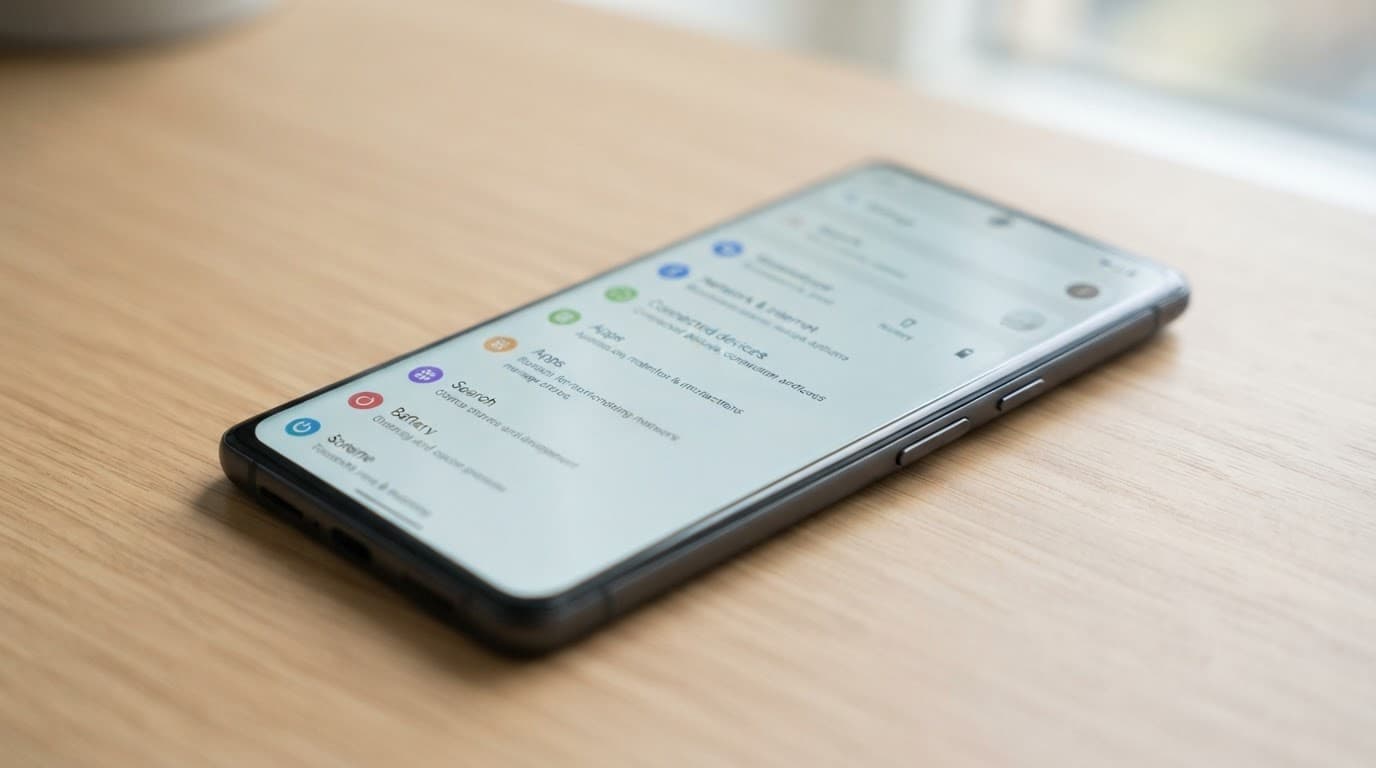
Open Settings > Network & internet > Private DNS, choose Provider hostname, then enter the hostname supplied by a DNS provider you trust. Google Public DNS uses dns.google, while Cloudflare uses one.one.one.one. Samsung users can usually find the same control under Connections > More connection settings.
This setting protects DNS queries only. It does not encrypt all app traffic, hide activity from every party, or replace an encrypted tunnel. Some airport and hotel sign-in pages fail to load while a custom provider is active. If that happens, temporarily set the DNS setting to Automatic, finish the legitimate sign-in, then restore your preferred setting.
Choose a VPN with clear privacy practices
A virtual private network, or VPN, encrypts traffic between your Android phone and the service. This encrypted connection helps prevent people on the same public network from easily inspecting or modifying that traffic. It’s especially useful on open Wi-Fi, where you don’t control the router.

Choose a service with a clear privacy policy, active support, modern Android app updates, and a documented approach to logs. Free services need extra scrutiny because a provider still has to fund its service. Read its data practices before routing your traffic through it.
After installing a trusted service, open Settings > Network & internet > VPN, tap the settings icon beside it, and look for always-on protection. If available, enable blocking without the encrypted tunnel for shared-network use. That acts as a kill switch, stopping traffic if the tunnel disconnects.
Samsung Secure Wi-Fi is also available on some Galaxy phones. It is designed to protect traffic on vulnerable Wi-Fi through encrypted connections. Availability, allowances, and menu locations vary by country, carrier, One UI version, and device. Search Settings for “Secure Wi-Fi” rather than downloading a similarly named app.
A VPN protects the link between your phone and the service. It cannot remove malware, stop a phishing page from collecting a password, or make an unsafe download safe. It also shifts some trust from the coffee shop network to the service. Treat these limits as part of your protection plan, not as a replacement for cautious browsing.
Close Sharing Paths and Use Hotspots Safely
File sharing is not usually exposed simply because you join public Wi-Fi. Android apps are sandboxed, and nearby file sharing still requires user action. Yet discoverable sharing features can expose your device name or invite unwanted transfer requests.
Turn off Bluetooth when you are not using headphones, a watch, or another accessory. In Quick Share or Nearby Share, set device visibility to No one or Contacts only. Samsung devices may show Quick Share under Connected devices or in the quick settings panel.
Reject unexpected pairing prompts, file-transfer requests, and nearby-device invitations. Do not grant an unfamiliar app permission to access all files merely to join Wi-Fi. A simple browser session should not need that access.
Your own mobile hotspot, routed through mobile carrier networks, can be a safer alternative to an open guest connection or shared hotspot when configured with WPA2 or WPA3 security and a long, unique password. It is not risk-free, so turn the hotspot off when nobody needs it. As part of your protection plan, check connected devices after sharing access with colleagues or family.
A phone monitoring tool has a legitimate place in a consent-based family setup or a company-owned device program with clear notice. It is separate from Wi-Fi security, and secret location tracking, message capture, call recording, or credential collection can violate privacy rules, workplace policy, and the law.
Handle a captive portal and suspicious connections
A captive portal is the sign-in page that appears before a hotel, airport, or guest network gives you internet access. Privacy tunnels and custom DNS settings may prevent Android from opening that page. The network has not granted normal internet access, so this troubleshooting sequence is part of your protection plan.
First, confirm the network name with staff. Then reconnect and tap Android’s “Sign in to Wi-Fi network” notification if it appears. If the page still won’t load, temporarily pause your VPN and change private DNS to Automatic. Complete the venue’s expected sign-in, then re-enable the tunnel and restore the DNS setting.
Never accept a prompt to install a certificate, device profile, remote-control app, or unknown browser extensions. Leave the network if the portal requests a Google password, credit card numbers, or unusual Android permissions.
If you suspect you joined a malicious network, follow the recovery part of your protection plan based on what occurred. Disconnect Wi-Fi, forget the network, and turn off Bluetooth if you didn’t need it. Then review downloaded files, run a Google Play Protect scan, and don’t download unfamiliar antivirus software.
Change passwords only for accounts where you entered credentials into a suspicious page or approved an unexpected login. Do that on mobile data or another trusted network. Review recent account sessions, remove unknown devices, and enable multi-factor authentication where it is missing.
If you installed an app, open Settings > Security & privacy and check Accessibility access, device-admin apps, network profiles, and certificates. Remove anything unfamiliar. A factory reset may be appropriate if you gave an unknown app deep permissions and can’t confirm what it changed.
For a company-managed phone, report the incident to IT with the Wi-Fi name, location, time, and any screenshots of the portal. That gives administrators enough detail to check identity logs or block risky connections without guessing.
Keep Security Work Legal and Consent-Based
A so-called spy app for Android and iPhone installed without the owner’s informed consent is not a public Wi-Fi defense. The same applies to a mobile hacking tool marketed for hidden surveillance, password capture, or credential interception. Never use a network connection to bypass another person’s privacy.
Parents should explain device rules and use transparent tools on family devices they are authorized to manage. IT teams should follow documented mobile-device management policies, provide employee notice, limit access by role, and obtain written approval for testing.
Do not treat remote-access software as a safeguard. In an Android and iOS test lab you own, use only approved tools with documented authorization, and never install them on personal or employee devices without informed agreement. That includes resources such as Download Pathfinder Rat, which should not be used for secret monitoring.
Organizations should define systems, dates, methods, and reporting rules before an assessment. Use qualified testers, not unapproved services such as Pro Ethical Hackers For Hire. Researchers may encounter Verified Tor Onion Links, but anonymous directories are untrusted references and should never be used on a production phone.
Frequently Asked Questions
Is public Wi-Fi safe to use on Android?
It can be used more safely when you verify the network, keep Android updated, and avoid suspicious portals or downloads. HTTPS and a reputable VPN reduce some risks, but they do not make phishing pages or malware safe.
Should I use a VPN on public Wi-Fi?
A reputable VPN encrypts traffic between your Android phone and the VPN service, helping protect it from inspection on the local network. Choose a provider with clear privacy practices, and remember that a VPN cannot stop phishing, malware, or unsafe downloads.
Should I turn off Private DNS to connect to hotel or airport Wi-Fi?
Custom Private DNS can sometimes prevent a captive portal from loading. Temporarily switch it to Automatic, complete the legitimate sign-in, and then restore your preferred provider.
How can I stop Android from reconnecting to public Wi-Fi?
Turn off automatic Wi-Fi activation and open-network joining in Android’s network preferences when those options are available. After leaving a public hotspot, open its Wi-Fi details and choose Forget so the phone does not reconnect automatically later.
What should I do if I entered my password on a suspicious Wi-Fi page?
Disconnect from the network and change the exposed password from mobile data or another trusted connection. Review recent account sessions, remove unknown devices, and enable multi-factor authentication if it is not already active.
Final Thoughts
Public Wi-Fi becomes far less risky when you verify the network, prevent automatic reconnection, and keep Android patched. Encrypted DNS, HTTPS, and a reputable tunnel support secure connections, but careful sign-in habits still matter most.
The goal is not to avoid every guest network forever. Safe browsing means verifying networks, avoiding suspicious portals, and delaying sensitive account work. A protection plan helps you secure Android public Wi-Fi without treating convenience as an avoidable account or privacy problem.