
A QR code can send your Android phone to a phishing page before you have time to read a single word. The malicious QR codes Android users scan at parking meters, restaurant tables, delivery notices, and emails often look routine because QR code shorteners can hide the dangerous destination inside the square.
Most scans don’t infect a phone by themselves. However, the link, app prompt, fake payment screen, or login request that follows can steal money, passwords, or account access, and may lead to account takeover. A few seconds of inspection can stop a costly mistake.
Key Takeaways
- Scanning a malicious QR code usually does not hack an Android phone by itself; the main danger comes from the link, login request, payment page, APK download, or permission prompt that follows.
- Preview the full destination before opening it, and treat QR code shorteners, unexpected in-app deep links, urgency, and unfamiliar domains as warning signs.
- Use official apps, saved bookmarks, or manually typed addresses for banking, payments, deliveries, and account logins. Never install an APK or grant accessibility, device-admin, overlay, or notification access because a QR page asks you to.
- Keep Android, Google Play system components, Chrome, and apps updated, and leave unknown-source installation disabled unless you have a specific trusted reason.
- After entering data, approving access, or installing an app, change exposed passwords from a clean device, revoke active sessions, contact your bank if needed, remove suspicious apps, and run Play Protect.
How malicious QR codes Android users scan become attacks
A QR code can store a website address, text, contact card, Wi-Fi configuration, or an app deep link. Attackers use that flexibility for QR code phishing, often called quishing attacks. Instead of asking you to click a suspicious email link on a well-protected work computer, they push you to your personal phone.
That shift matters. On a phone, a long address is harder to inspect, browser warning signs are easier to miss, and a rushed user may sign in without noticing the wrong domain. Microsoft reported that QR-code phishing detections rose from 7.6 million in January 2026 to 18.7 million in March, a 146% increase in a single quarter, highlighting the changing threat landscape.
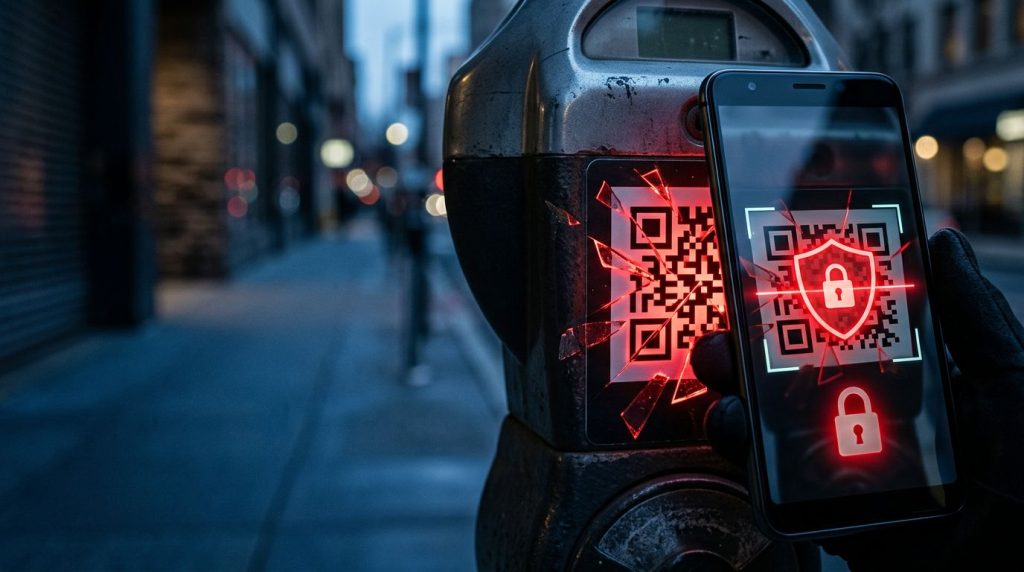
Attackers place malicious codes in email attachments, social posts, printed flyers, fake package notices, and stickers pasted over real signs. A criminal can cover a restaurant’s legitimate menu code with a lookalike sticker, or replace a parking payment code with one that opens a convincing payment scam.
Scanning alone usually does not hack your phone
A scan does not automatically give an attacker control of Android. The camera or scanner reads the encoded data, then Android usually asks before opening a link, joining a network, or handing information to another app.
The risk begins when you follow the next instruction. Phishing websites may imitate Microsoft 365, Google, a bank, a delivery company, or a payment processor. They ask for credentials, card details, or a one-time code, then send them to the attacker.
A malicious site can also trigger an APK download. Android does not normally install an APK without your approval. The system requires you to allow installation from that browser or file manager, then confirm the app installation. That friction is useful, so treat any request to change “Install unknown apps” settings as a stop sign.
A QR scan is usually the doorway, not the break-in. The most dangerous moment is when a page asks you to sign in, pay, download, or approve access.
In-app deep links and account takeover attempts
An in-app deep link can open an installed app or send you to a browser page that resembles it. A QR code may claim to verify a Telegram, Signal, WhatsApp, or work account, then use in-app deep links to open a fake sign-in screen. Fake device-pairing prompts can use in-app deep links to make an approval request look routine.
An in-app deep link itself cannot bypass authentication. However, attackers can use in-app deep links to request passwords, recovery codes, one-time passcodes, or pairing approvals. Those stolen details can enable an account takeover. After an account takeover, attackers may use in-app deep links to impersonate the victim, target contacts, and request money.
QR code shorteners can hide the destination in a scanner preview, making it harder to assess. Even a familiar brand name doesn’t make QR code shorteners safe, because they can lead to malicious destinations. A redirect chain may pass through QR code shorteners before it reaches the final phishing site. QR code shorteners can also collect device details before the redirect completes. If a preview contains QR code shorteners, don’t open suspicious URLs until you’ve verified the source independently. Use the same check when in-app deep links point to unfamiliar destinations.
Common malicious QR code threats and the right response
A QR code can support several scam types. Phishing scams usually reveal themselves through the action they request after scanning.
| Threat | What the QR code tries to do | Recommended response |
|---|---|---|
| Fake payment page | Copies a parking, utility, restaurant, or charity payment screen | Close it, then use the merchant’s official app or type its site yourself |
| Credential harvesting | Imitates Google, Microsoft, a bank, or a work login | Don’t enter credentials or one-time codes. Submitting them can lead to account takeover, but scanning alone doesn’t grant account access. Report the message or sign |
| Redirect chain | Uses QR code shorteners to hide the final URL or destination | Stop at the preview, inspect the final URL, and stop if it leads to malicious destinations |
| Malicious APK files | Prompts for an APK file or asks to allow unknown-app installs | Cancel the download and keep unknown-source installation disabled |
| In-app deep links | Opens a fake account verification, pairing, or support workflow | Cancel it and refuse new-device approval requests you didn’t initiate |
| Device-management lure | Requests accessibility, device admin, overlay, or notification access | Decline the request, remove the app if installed, and audit special permissions |
| Wi-Fi configuration | Offers a free network or asks to connect to an unknown hotspot | Don’t join it unless the venue confirms the network name |
Some in-app deep links can launch an app workflow instead of a browser page. Reject an unexpected verification or pairing flow, including in-app deep links you didn’t initiate.
For payment-related codes, small changes matter because a fake page can lead to financial fraud. QR code shorteners can hide suspicious URLs behind a familiar-looking payment page. A domain such as parking-pay.example may look plausible, while the real city service uses a different address. QR code shorteners don’t change domain ownership: a page hosted at cityparking.pay-now.example belongs to pay-now.example, not the city.
The FTC’s QR-code scam alert advises consumers to inspect the URL before opening it and contact the business through a known method. This matters when QR code shorteners obscure the destination. Use an official website’s phone number, not one displayed after scanning; contact the business independently instead of trusting QR code shorteners or scan results.
Safe scanning practices for Android in 2026
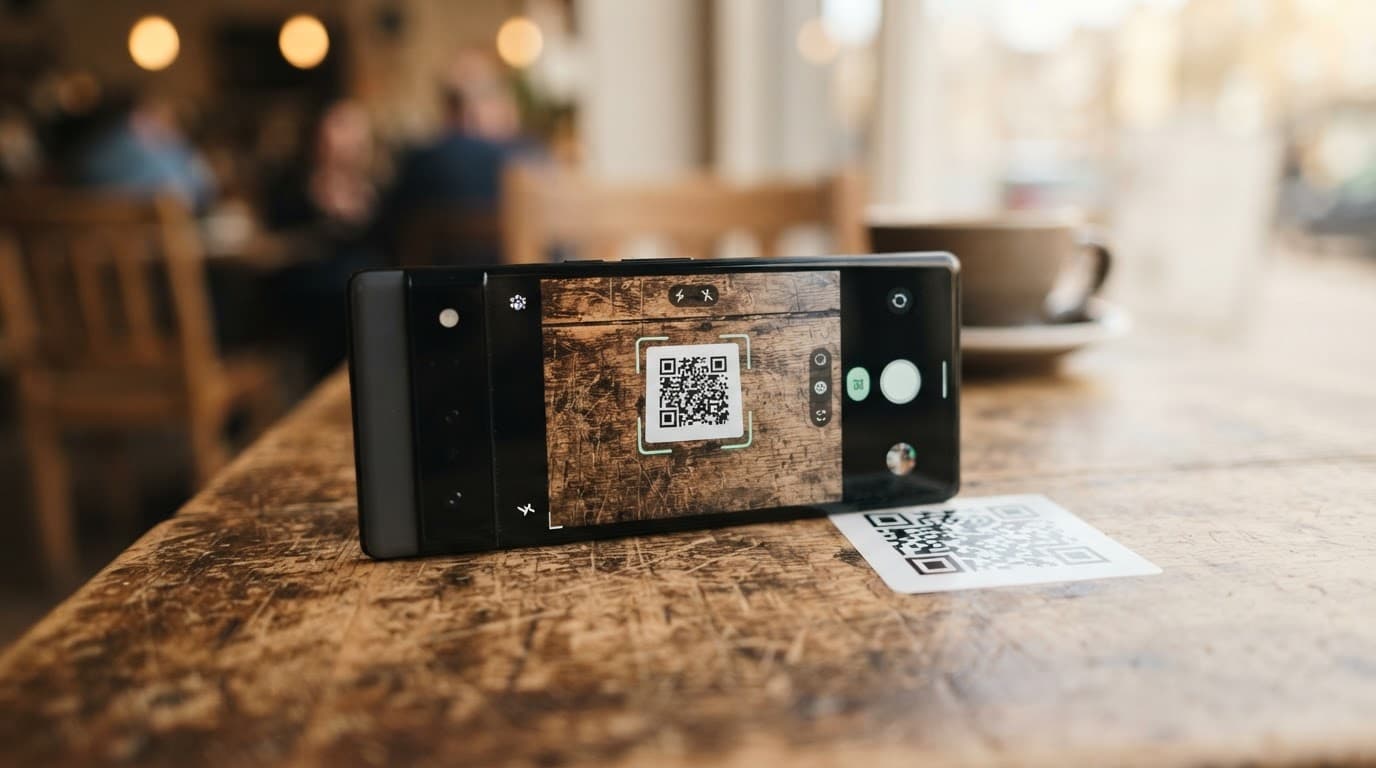
Use Android’s built-in camera scanner, Google Lens, or secure QR code scanners that preview the destination before opening it. Reputable scanners and readers may also consult URL reputation engines as a supplemental signal, but inspect the full domain yourself. Avoid standalone QR-reader apps with broad permissions. The tool should need camera access, not contacts, messages, accessibility controls, or device-admin privileges. Check camera app settings for excessive requests.
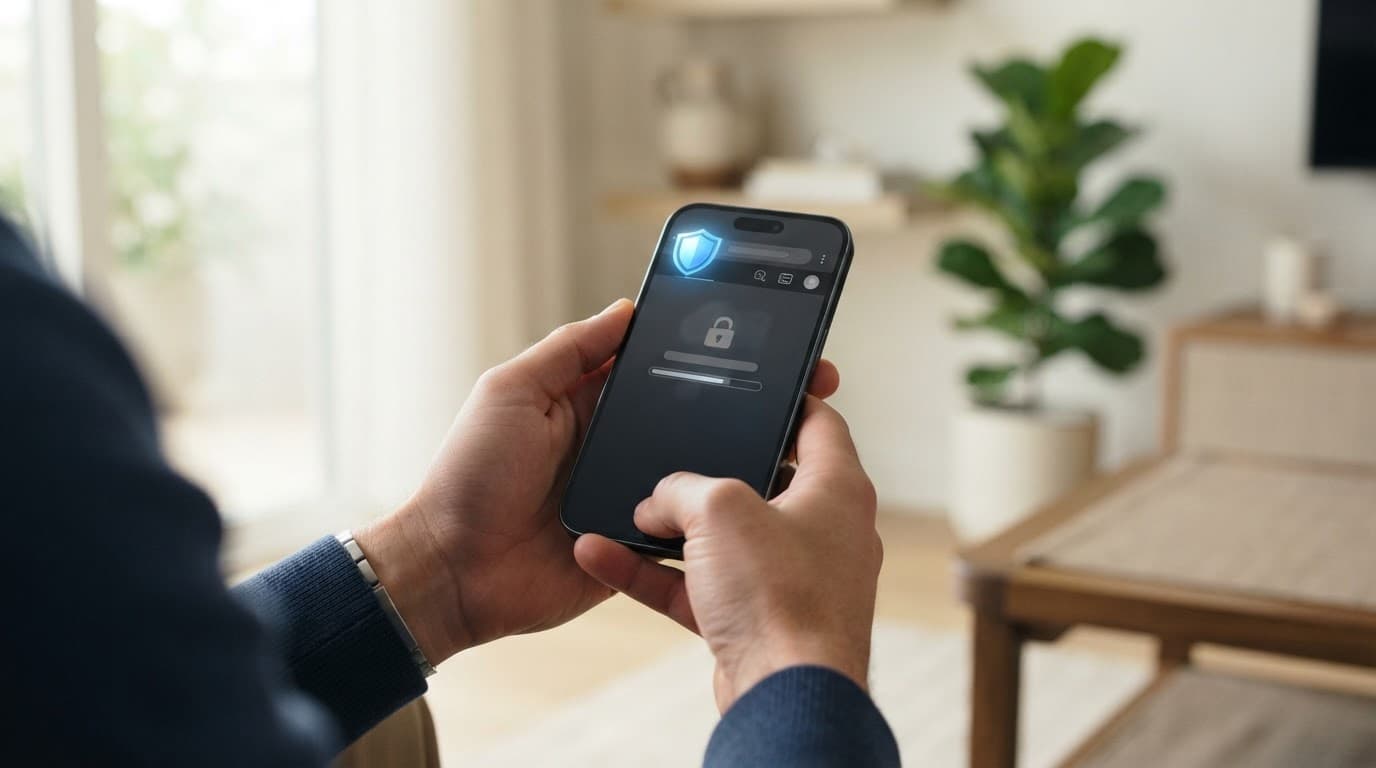
These cybersecurity practices make QR threats facing Android users far less effective:
- Pause before scanning anything unexpected. A code on an unsolicited email, parcel notice, street poster, or social post deserves more suspicion than one in a trusted app.
- Read the destination preview before opening it. Inspect the full domain for misspellings, extra words, strange country-code endings, or unrelated brand names. QR code shorteners and in-app deep links can hide malicious destinations, so a shortened destination still needs independent verification.
- Open important services yourself. For banking, parcel delivery, parking, healthcare, and work accounts, use a saved bookmark, the official app, or a manually typed address. Avoid QR code shorteners and in-app deep links when independent verification is available.
- Never install an APK because a QR page told you to. Direct app downloads from a browser offer fewer protections than Google Play. Google Play Protect, Android’s built-in security controls, and app store security provide safer review and scanning.
- Do not enter passwords or one-time codes after a surprise scan. Sign in only through the service’s known app or website, rather than unexpected in-app deep links. Passkeys add useful protection against account takeover because they are tied to the legitimate domain.
- Keep Android and Google Play system updates current. Android 14, Android 15, Android 16, and newer versions receive security improvements through system updates, Play system updates, and app updates.
- Treat urgency as evidence, not proof. “Pay in two minutes,” “verify now,” and “your account will close” are social engineering tactics designed to override caution.
A legitimate business can use a QR code, but its code shouldn’t force you to install software, disclose a password, or grant unusual permissions. The same rule applies to internal corporate messages. Verify an unexpected QR request through a known colleague, help desk number, or approved employee portal, rather than relying on in-app deep links in the message.
Spotting fake QR stickers in public places
Fake stickers are cheap and effective. They often appear on parking meters, transit posters, restaurant tables, charging stations, and public noticeboards. Attackers don’t need to compromise the original business system if they can cover its printed QR code.
Check whether the code looks pasted on top of another label. Raised edges, mismatched colors, uneven placement, a different paper finish, or blocked instructions are useful clues. A replacement sticker may launch in-app deep links into an installed app workflow. Don’t trust in-app deep links merely because the sticker appears in a public venue. Still, a clean-looking sticker proves nothing, since a careful attacker can print a convincing replacement.
When a code requests payment, compare its destination with the business’s official domain before entering card data. QR code shorteners can conceal malicious destinations, so verify the final domain first. A parking meter may show a location number or provider name you can confirm in the city’s parking app. Restaurants often publish their menu address online, so compare it with the final domain when QR code shorteners are used.
Be wary of codes near public Wi-Fi signs. A code can include network details, but connecting to an unverified hotspot exposes you to fake captive portals and traffic interception attempts. Ask staff for the network name, then join it manually if you need access.
A QR code can also lead to contact poisoning. For example, a fake support page may persuade you to save a fraudulent help desk number. Later calls and messages from that contact can seem legitimate. This contact poisoning gives the scammer another route to account takeover.
Audit your Android phone after a suspicious scan
If you only scanned a code, viewed the preview, and closed it without opening anything, your risk of device compromise is low. If you opened a page, downloaded a file, signed in, approved a prompt, or followed in-app deep links into an installed app workflow, review the phone and affected account.
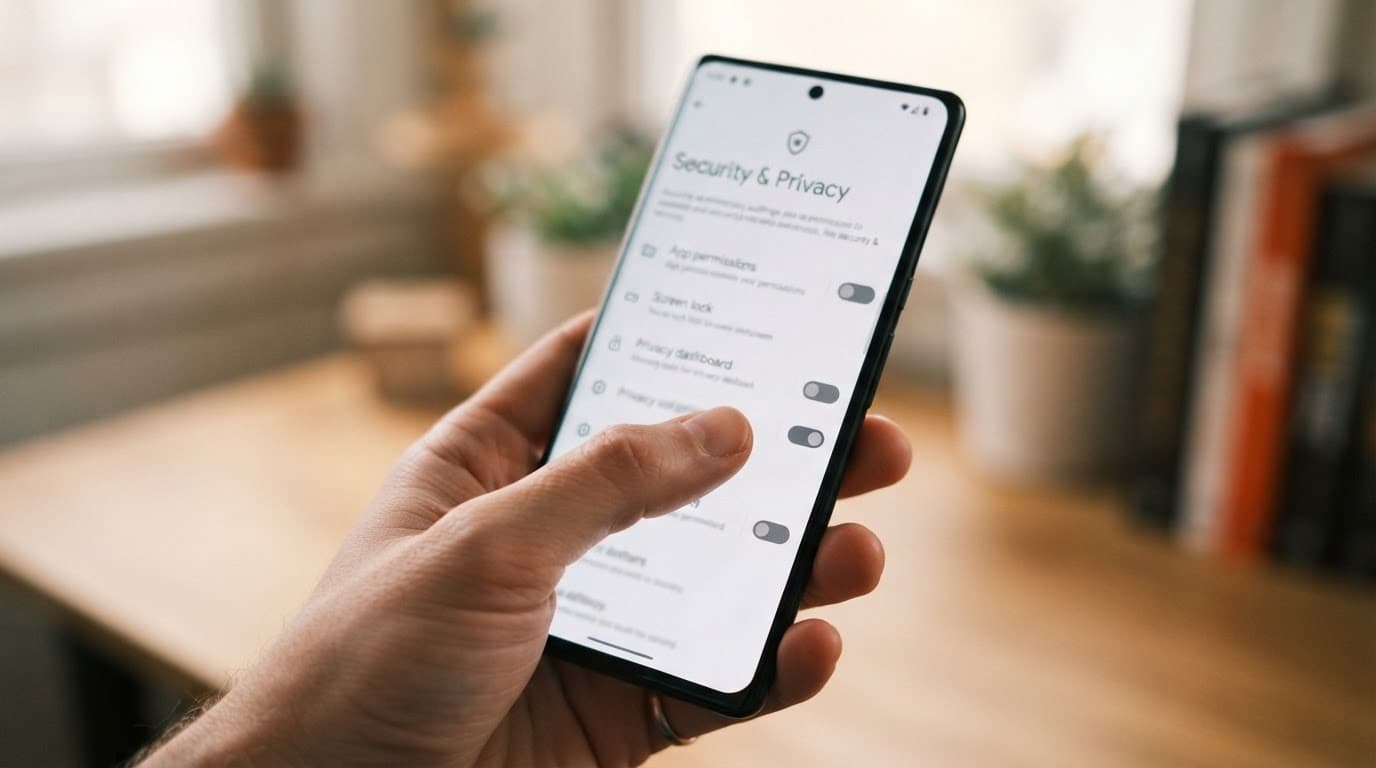
Start with app installation. Go to Settings > Apps and sort or review recently installed apps. Note whether an unfamiliar app opened through in-app deep links after the scan. Remove anything you do not recognize, especially an app installed outside Google Play. If Android will not uninstall it, first remove its special access, device-admin status, or accessibility control.
Then check Settings > Apps > Special app access. Menu names differ by manufacturer, so review any app opened through in-app deep links for these permissions:
- “Install unknown apps” should be off for browsers, messaging apps, and file managers unless you have a specific, trusted reason.
- Accessibility access should only include services you knowingly use. Android malware often abuses this permission to read screens, tap buttons, and capture login data.
- Device admin apps, notification access, display-over-other-apps permission, VPN access, and usage access can weaken security controls and give an app unusual visibility or control.
- In Settings > Privacy > Permission manager, remove camera, microphone, location, contacts, and SMS access that an app does not need.
“Allow from this source” grants one app permission to install outside Google Play. It is not a one-time approval for a single file.
Next, for app store security, open the Play Store, tap your profile icon, select Play Protect, and run a scan. Also update Android, Google Play system components, Chrome, and installed apps. A phone that has missed patches for months needs attention even if no suspicious QR code appeared.
Check your browser’s history and downloads for QR code shorteners, unexpected redirects, and APK files. Review the history for in-app deep links that opened an app, then delete unexpected APK files. Clearing browser data can remove cookies and cached pages from the suspicious site, although it will not undo a password you already submitted or prevent account takeover. For account security, changing the password and revoking active sessions matter more.
What to do if you entered data or installed an app
Move quickly when a QR code led to a fake login, payment page, or app download. Fast action can reduce the risk of account takeover. Do not reopen the suspicious page to investigate it, even if QR code shorteners produced a redirect chain. Use a known-safe device or a trusted browser session to manage affected accounts.
- Disconnect the Android phone from Wi-Fi and mobile data if you installed an unknown app or granted it sensitive permissions. If the scan opened an installed app through in-app deep links, this limits its ability to contact a remote server while you remove it.
- Change exposed passwords from a clean device. Start with the email account connected to the affected service because email password resets can unlock many other accounts. If the scan interacted with an installed app through in-app deep links, treat passwords entered there as exposed.
- Revoke active sessions and unknown devices. Review account-security pages for unfamiliar sign-ins, recovery methods, forwarding rules, and linked devices to help stop an account takeover. Messaging apps often provide a linked-devices or active-sessions page for reviewing activity from an installed app opened through in-app deep links.
- Call your bank or card issuer through the number on the card or its official app. Ask about recent transactions and follow its financial fraud process if you entered payment details.
- Remove the app and revoke its permissions if the scan opened an installed app through in-app deep links. Run Play Protect, delete downloaded files, and update Android. If the device remains unstable or the app reinstalls itself, back up essential files and consider a factory reset.
- Report the fraud promptly to the service being impersonated and the appropriate consumer-fraud authority if it may lead to account takeover. Include the redirect chain, any QR code shorteners, and any installed app the scan opened through in-app deep links. Mention saved fraudulent support numbers as possible contact poisoning, and alert workplace security quickly about QR phishing so it can block the domain and warn staff.
Do not share screenshots that include passwords, one-time codes, wallet recovery phrases, or full payment details. A screenshot of the suspicious domain and the physical sign can help a business or security team investigate without exposing your information.
Mobile monitoring, security tools, and lawful device oversight
A phone monitoring tool cannot determine whether a QR destination is honest. Mobile security risks can increase when a mobile hacking tool or so-called spy app for Android and iPhone introduces privacy, account, and accessibility-permission problems.
Parents and employers should use consent-based parental controls or mobile-device management, with clear notice, a lawful purpose, limited data collection, and policies addressing risky launches from in-app deep links. For company-owned Android devices, administrators can apply security controls, block unknown-source installations, require screen locks and updates, and use managed browsers. They should also review unexpected in-app deep links and give staff a simple reporting route for suspicious codes.
Treat pages promoting surveillance or remote-access software as suspicious promotional destinations. A QR redirect that advertises Pathfinder RAT for Android and iOS, including one labeled Download Pathfinder Rat, should be treated as a security warning rather than a tool recommendation. The same caution applies to QR pages offering Pro Ethical Hackers For Hire or directing users to Verified Tor Onion Links.
Legitimate security testing requires written authorization, defined systems, a clear scope, and responsible handling of collected data. Never install remote-control software on another person’s device without their informed consent.
Frequently Asked Questions
Can scanning a malicious QR code hack my Android phone?
Scanning a QR code alone usually does not give an attacker control of your Android phone. The risk increases when you open the destination, enter credentials or payment details, install an APK, or approve unexpected access.
How can I tell whether an Android QR code is malicious?
Preview the destination and inspect the full domain for misspellings, extra words, strange endings, shortened URLs, or unrelated brand names. Independently verify public stickers, payment requests, and business contact details instead of trusting the page opened by the code.
Should I install an APK opened by a QR code?
No, do not install an APK simply because a QR page instructs you to do so. Cancel the download, keep unknown-source installation disabled, and obtain apps through Google Play or the service’s official store.
What should I do after entering my password on a QR phishing page?
Use a clean device to change the exposed password, starting with your email account, and revoke active sessions and unfamiliar devices. Contact your bank through its official app or the number on your card if you entered payment details, and report the phishing attempt.
What if I only scanned the QR code and closed the preview?
If you only scanned the code, viewed the preview, and closed it without opening anything, downloading a file, or entering information, the risk of device compromise is low. You can still review browser history and downloads, keep Android updated, and run a Play Protect scan for reassurance.
Conclusion
QR codes are convenient, but they hide the destination that ordinary links reveal. Safe scanning means checking the address, refusing unexpected app downloads, and using trusted apps or bookmarks for payments and logins.
QR threats targeting Android users rely on haste and misplaced trust. Pause at the preview screen, keep Android updated, and close any page requesting unexpected permissions.