
A forgotten browser session can give someone access long after you changed phones or stopped using a computer. Checking Instagram login activity shows where your account has recently been used, so you can remove sessions that don’t belong to you.
The process takes only a few minutes on Android, iPhone, or a browser. However, a location alone isn’t proof of a break-in because mobile carriers, VPNs, and IP addresses can make a familiar login look unfamiliar.
Start with the session list, then reset your password and check the device as part of your account security routine.
What the Instagram Session List Can Show You
Instagram’s session screen is a practical audit tool, not a complete forensic log or full device history. It helps you spot active sessions and recent access, then act before an unknown session becomes a larger account problem.
Review devices and locations, plus recent access details
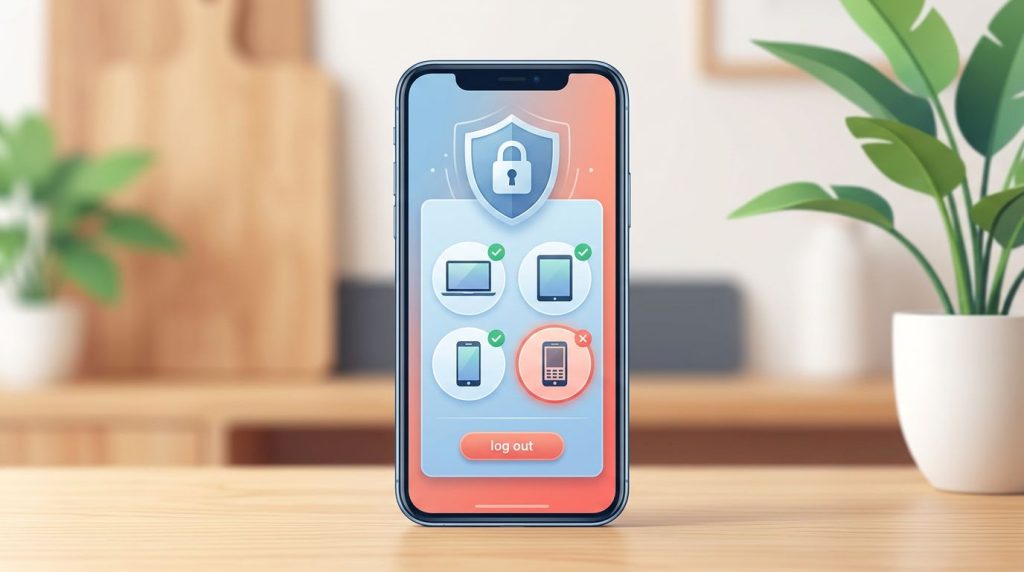
Meta’s recent-session guide directs users to a list of devices that recently logged in. Depending on the device and app version, entries may show a device type, an approximate location, and a recent time or date.
Treat those details as clues. A login labeled “Chicago” may come from your home if your carrier routes traffic there. Likewise, a browser session may show a generic device label instead of the computer’s model.
Look for combinations that don’t match your activity, such as a device you don’t own, a location in another country, and a time when you were asleep. That pattern deserves immediate action.
Understand accounts in Meta’s account hub
Meta’s account hub, sometimes searched as “Meta account Center,” uses the official UI label “Accounts Center.” It manages connected experiences across Instagram, Facebook, and sometimes WhatsApp.
You don’t need a Facebook account to check Instagram sessions. A standalone profile can still use the account hub.
If you manage several profiles, select the correct Instagram profile before judging the device list. A shared family tablet or a work phone may also appear under more than one profile.
Review cross-account sign-in settings separately. Meta explains that connected account experiences can include logging in across linked accounts. Remove an account you no longer control, especially after a job change, separation, or a lost device.
How to Review Recent Instagram Sessions on Mobile
The current path on both major mobile platforms runs through the account hub. Menu names can shift with app updates, account types, operating systems, and regions, so look for security labels rather than relying only on icon placement.
Use the Android or iPhone app
Open the Instagram application and follow these steps in the mobile app:
- Tap your profile picture in the lower-right corner.
- Tap the three horizontal lines in the upper-right corner.
- Open Accounts Center. On some versions, you may first need to open Settings and privacy.
- Tap Password and security.
- Choose Where you’re logged in under security checks.
- Select the correct profile for your Instagram account, then inspect its logged in devices.
The route is substantially the same on iPhone and Android. If the account hub displays several profiles, don’t assume the first device list belongs to the profile you’re auditing.
An unfamiliar session is more concerning when its device type, location, and last activity all conflict with your own recent use.
Choose the right profile before ending sessions
A person who runs a personal account, a business profile, and a creator account can easily end access to the wrong session. First, note the username shown in the account hub. Then select that profile before choosing devices to remove.
Instagram may show a button for selecting multiple devices. Select the suspicious entry and confirm the removal. If the app instead opens the older login activity screen, open the options beside an entry and choose Log out.
Take a screenshot of a suspicious device entry before ending access if you need to document the incident for an employer, school, or law enforcement report.
Check Connected Devices on Instagram Web
Desktop access is useful when your phone is lost, damaged, or unavailable. It also gives you a larger screen for comparing locations and device entries.
Open security settings in a browser
Sign in at Instagram on a trusted computer. Click More in the lower-left corner, then open Settings and the account hub. Choose the password controls, followed by Where you’re logged in.
Some accounts still show a Login Activity option in the security menu. That older view can list sessions and let you end the session through the menu beside each entry.
Avoid checking Instagram on a public library computer, hotel business center, or shared browser. If you must use one, sign out afterward and don’t save the password in the browser.
What a session list cannot confirm
The session list does not show every failed password guess. It also can’t reliably identify who made the last login. A familiar laptop could belong to a former roommate, while an unfamiliar location could be your own mobile carrier.
Use the list to identify access that needs removal. Don’t use it as a reason to accuse someone without other evidence.
How to Recognize a Suspicious Instagram Session
A quick review works best when you compare entries against your normal routines. Treat a suspicious log in as a signal to investigate when details conflict. Write down devices you regularly use before deciding that every unfamiliar label is a compromise.
Signs that deserve a closer look
The following entries warrant attention:
- A recent login from a country or region where you haven’t traveled.
- A browser or phone model you have never owned.
- Several sessions appearing soon after a phishing email or password reuse alert.
- Account changes you didn’t make, such as a new bio link, unknown posts, or messages sent to followers.
- Repeated logins after you already signed unknown devices out.
A session from a different city isn’t enough on its own. First, consider a VPN, cellular routing, a work network, or a browser you used on someone else’s computer.
Check the account for damage
Open your profile and scan recent posts, stories, DMs, linked email address, phone number, account settings, and recovery details. Attackers often change recovery details to keep control after a password reset.
Also inspect your email inbox for messages from Instagram about changed contact information or login attempts. Meta says legitimate reversal messages for email changes come from security@mail.instagram.com, and its email-change recovery guidance explains how to reverse an unauthorized change.
If you find unknown messages or contact changes, don’t wait for a second suspicious login. Secure the profile immediately.
Remove Unknown Devices and Reset Access
Ending a device session cuts off that access, but it doesn’t repair a stolen password, compromised email inbox, or infected phone. Use remote logout as one part of a short response sequence.
Use remote logout for suspicious sessions
In Where you’re logged in, select the affected profile. Choose the device or devices you don’t recognize, then tap or click Log out. Confirm the action and refresh the list.
If several entries look wrong, remove every session you cannot identify. You may need to sign back into your own phone, tablet, and browser afterward.
Do this from a device you trust. A phone that has unknown apps or a browser with unrecognized extensions may expose the new password you create next.
Change your password before the problem spreads
Open Accounts Center, choose Password and security, then select the password change option for Instagram. Create a long, unique password that you don’t use for email, Facebook, banking, or another social platform.
Secure the email address tied to Instagram too. Anyone who controls your inbox can request another Instagram reset. Update the email password, review its recovery methods, and remove unknown forwarding rules.
Then verify the phone number and email address listed on Instagram. A strong password is less useful if an attacker has already replaced the recovery details.
Add Protection After Your Account Audit
Once you remove suspicious devices, add sign-in controls that make a reused or stolen password much less useful. Security settings can vary, but the security hub groups the most important options under Password and security.
Turn on two factor authentication and login alerts
2FA asks for a second proof when someone signs in from an unrecognized device. Meta’s two-factor authentication settings support security codes beyond the password.
An authenticator app, such as Duo Mobile or Google Authenticator, avoids relying only on text messages. Save any recovery codes in a password manager or another secure offline location. Don’t store them in an Instagram DM or a public notes app.
After enabling 2FA, turn on login requests or alerts. Instagram explains that login requests can alert you when someone attempts access from a new device or browser.
Remove old apps and website permissions
A third-party app may have legitimate access without appearing as a device session. For example, a scheduling service or analytics tool can stay connected after you stop using it.
Review the active app list in Instagram’s privacy settings. Meta’s instructions for removing connected apps and websites direct users to Website permissions, then Apps and websites, where active connections can be removed.
Remove services you don’t recognize and apps you no longer use. Be cautious with follower trackers, profile viewers, and giveaway tools that request Instagram credentials. A reputable service should use Instagram’s permission screen, not ask for your password in a separate form.
Protect the Phone or Computer Behind Instagram
An account review only protects future logins when the device itself is secure. This matters after installing an app outside an official store or entering credentials on a suspicious site.
Scan Android devices and apply updates
Android users should keep Google Play Protect enabled. Google’s Play Protect guidance explains how it scans apps for harmful behavior and warns about unsafe software.
Check the phone’s security-update status as well. Google provides steps to remove malware or unsafe Android software, including where to find security updates.
Remote-access trojans, often called RATs, can steal credentials or monitor a screen. If you suspect one, remove unknown apps and review accessibility and device-admin permissions. Update the phone and change passwords from a separate, trusted device.
Review iPhone privacy and account access
Keep iOS and Instagram updated. Apple states that iOS updates help protect iPhones from web attacks, which matters after a phishing page or malicious link.
If someone had physical access to your iPhone, review Apple ID devices, installed configuration profiles, and shared permissions. On iOS 16 or later, Safety Check can review sharing and connected access.
The Instagram session list can’t diagnose device surveillance. It only reports sessions connected to the service.
Keep monitoring consent-based and legal
Check your own device, company-managed devices with documented authorization, or a child’s device when local laws and family agreements permit it. A phone monitoring tool has a limited role in those situations. It should never collect another adult’s private data without permission.
Don’t install a mobile hacking tool or a so-called spy app for Android and iPhone to investigate a partner, employee, or friend. These tools can violate privacy laws, introduce malware, and expose your own data.
Avoid offers to Download Pathfinder Rat or services branded Pro Ethical Hackers For Hire when the goal is accessing someone else’s account. Use official recovery channels, documented internal security procedures, and lawful incident reporting instead. Research directories such as Verified Tor Onion Links have no role in recovering an ordinary profile.
Recover a Hacked, Locked, or Disabled Account
You may lose access before you can review connected devices. In that case, recovery comes first, and session cleanup follows once Instagram restores access.
Use Instagram’s official recovery path
On the login screen, choose the option for forgotten passwords or profile help. Follow the identity checks and use an email address or phone number you still control.
Meta’s hacked Instagram profile help covers recovery steps for profiles with changed passwords, email addresses, or other signs of compromise. Don’t pay a stranger who promises instant recovery. That offer often creates a second loss.
After you regain access to the Instagram account, check the session list and reset the password. Then activate two-factor authentication and review profile details again.
What happens if the account is banned
A disabled or banned account may block access to Accounts Center and the device list until Instagram resolves the status. There is no reliable workaround for viewing login history without access.
Use Instagram’s appeal or recovery process through the login screen. If the profile was disabled after suspicious posting, include accurate details and preserve relevant emails or screenshots. Don’t create a fake identity or use an unauthorized tool to bypass Instagram’s controls.
Conclusion
A session list is most useful when you pair it with a password reset, 2FA, and a secure email inbox. Instagram login activity can reveal access you need to remove, but device labels and locations require careful interpretation.
Review connected devices after travel, a lost phone, a phishing scare, or a major password update. Small, regular checks make account takeovers harder to miss.
FAQ
Can I review recent Instagram sessions without linking Facebook?
Yes. Facebook isn’t required. Open Instagram, go to the account hub, select Password and security, then choose Where you’re logged in. You may see other Meta accounts only if you linked them yourself.
Can I remotely log out a suspicious device?
Yes. Under Where you’re logged in, select the relevant profile, choose the unfamiliar device, and confirm the action. Change your password immediately afterward, because an attacker may still know it.
Can I see login activity on a banned profile?
Usually, you can’t review device sessions while you cannot access the profile. Use Instagram’s official recovery or appeal process first. Once access returns, inspect the session list, remove unknown devices, and update all recovery details.