
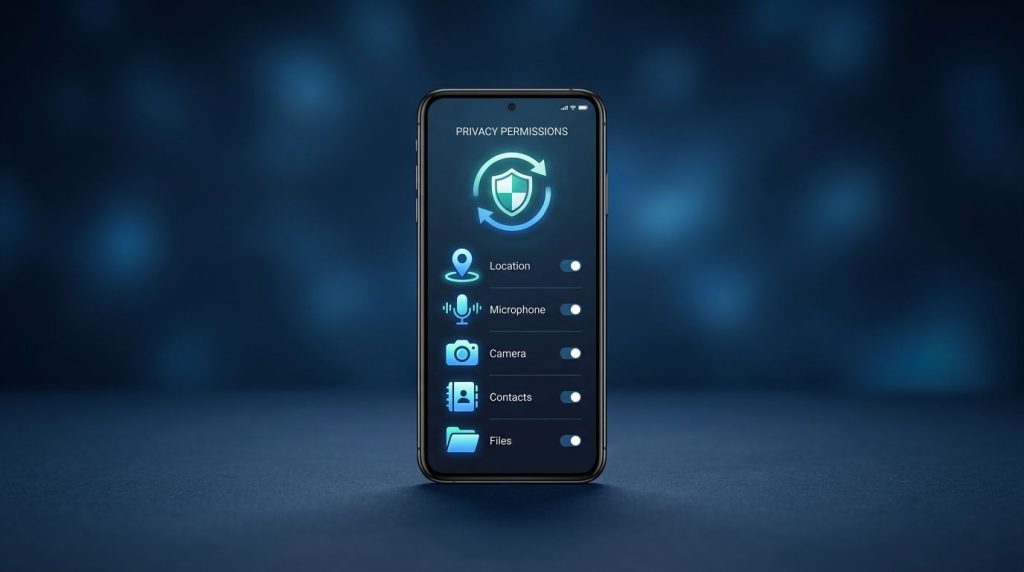
An app can change what it does long before its icon, name, or layout looks different. Reviewing permissions on Android after every update helps spot new access to restricted data, including location, microphone, contacts, or files.
Most updates are routine bug fixes. However, an update that introduces a sensitive permission deserves a closer look before you tap “Allow.” A short review supports user privacy and protects personal devices, supervised family phones, and company-managed Androids.
Key Takeaways
- Review an app’s permissions after every update, especially access to location, camera, microphone, contacts, files, SMS, and other sensitive data.
- Compare current access with a previous baseline, choose the narrowest available permission scope, and deny requests that do not match the app’s purpose.
- Use Privacy Dashboard to check recent access, and review Special app access separately for elevated controls such as accessibility, overlays, notification access, and all files access.
- Revoke permissions that are no longer needed, enable auto-reset for unused apps when available, and keep a simple record of approved access on family or work devices.
- Treat unexplained permission changes or unusual behavior as warning signs, and investigate before continuing to use the app.
Why App Updates Deserve a Permission Check
Permissions are Android’s gates around restricted data and restricted actions. They protect user privacy by stopping an app from using your camera, recording audio, reading contacts, or tracking location. The operating system controls access, and, in many cases, the user can allow or deny it.
An update can introduce a new feature that needs more access. A navigation app might add a location permission for background trip alerts. A video editor might request a camera permission after adding capture tools. Those requests may be reasonable when they match a feature you chose to use.
The risk appears when an update requests restricted data or restricted actions that don’t match the app’s purpose. A flashlight app doesn’t need contact information. A simple wallpaper app shouldn’t need accessibility access, notification access, or permission to install unknown apps.
App permissions also remain active after earlier approvals. If you granted location access two years ago, a newer version can use that existing permission without showing a fresh prompt. That is why an update review should check both new requests and old access that no longer makes sense.
Android organizes access by protection level and permission groups. The Android permission overview explains how the platform limits access to personal data and security-sensitive functions. Runtime permissions are requested during use, install-time permissions are granted during installation, and special permissions control powerful settings. Normal permissions are generally granted automatically because they pose less risk, but each should connect to a feature you want.
A new permission request is not proof of malicious behavior. A request that has no clear connection to the app’s job is a reason to deny access and investigate.
How to Check Android App Permissions After Every Update
Menu names vary by Android version and manufacturer. On a Google Pixel, open the settings app and go to Settings > Apps > See all apps > [app name] > Permissions. Samsung Galaxy phones commonly use Settings > Apps > [app name] > Permissions. Other brands may group these controls under Privacy, Security, or App management.
Use this permission workflow after updating an app that handles sensitive information or has broad device access:
- Open the app’s page in the Google Play Store before launching it. Read the “What’s new” notes and review its listed data practices. Update notes may reveal whether a new camera, location, or sharing feature explains the request.
- Open the app permissions page in Settings. Review both allowed and denied items. Pay close attention to the location permission, camera permission, microphone, contacts, SMS, calendar, phone permission, nearby devices, photos and videos, and music and audio. These categories may expose restricted data or enable sensitive device functions.
- Compare the current access with a baseline. For high-risk apps, take a screenshot of the permissions page before updating. IT teams can record the approved permission set in their mobile device management inventory.
- Check each sensitive permission’s scope. For runtime permissions, Android may offer “Allow only while using the app,” “Ask every time,” “Allow all the time,” or “Don’t allow.” Choose whether to allow or deny the request, then select the narrowest option that keeps the feature useful. Review elevated access under Special app access separately, often listed as special permissions.
- Launch the app and test the feature that prompted the request. If the app works without the permission, leave it denied. If it fails, decide whether that feature is worth the privacy trade-off.
Location deserves extra care. A weather app can often work with approximate location and only while in use. A turn-by-turn navigation app may need precise location during an active trip. Few consumer apps need continuous background tracking.
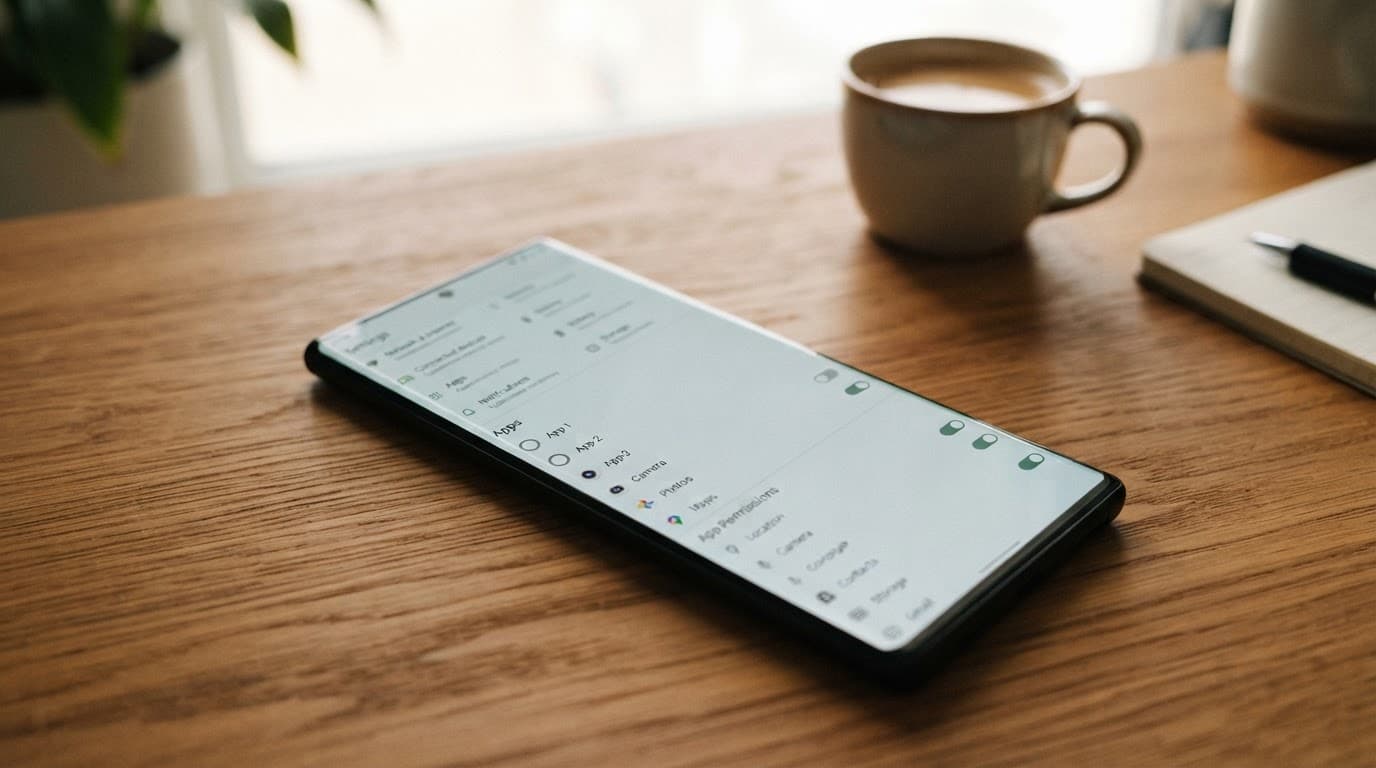
When an update prompts for access immediately, follow these best practices and don’t rush through the dialog. Deny it first, inspect the app’s change log and settings, then grant it only if the requested feature is clear. Apps built responsibly should explain why they need sensitive access when you use that feature.
Use Privacy Dashboard to Check Actual Access
The Permissions page shows what an app can access. Privacy Dashboard helps show what it has accessed, including restricted data. On supported devices with Android 12 or later, open the settings app and go to Settings > Privacy > Privacy Dashboard. Some phones use Settings > Security & Privacy > Privacy > Privacy Dashboard.
Choose Location, Camera, or Microphone to view the apps that accessed that data. Android 13 can show activity from the last seven days, while Android 12 generally shows the previous 24 hours. Tap an app in the timeline to open its permission settings.
A single camera event may be expected after you scanned a document or joined a video call. Repeated microphone access from an app you haven’t opened calls for a closer review. Check the access time against your own activity, then revoke the permission if you can’t explain it.
Privacy Dashboard and Permission Manager answer different questions:
| Tool | Best use |
|---|---|
| Privacy Dashboard | Find recent use of location, camera, and microphone |
| Permission Manager | See every app allowed to use one permission category |
| Individual app permissions | Review all access granted to one app |
| Special app access | Inspect elevated controls outside regular permissions, including special permissions |
The permission manager is often available under Settings > Privacy. It organizes access by permission groups, making it useful after several apps update. You can review every app with microphone, contacts, or location access in one place.

Understand Runtime Permissions, Install-Time Permissions, and Special Permissions
Android’s permission names can feel technical, yet their categories explain why some updates trigger a prompt while others do not. Android evaluates each category by sensitivity and protection level.
Install-time permissions cover lower-risk functions. Android grants normal permissions automatically when you install or update an app, so you usually won’t see a confirmation dialog. They still belong in an app’s declared permission list, but they do not normally expose highly sensitive data.
Runtime permissions protect restricted data and restricted actions. Location, camera, microphone, contacts, calendar, nearby devices, photos, videos, and phone-related access can fall into this category. Android asks the user during use because the context matters.
Special access sits outside the standard allow or deny prompt. Examples include Accessibility, notification access, display over other apps, all files access, usage access, device administrator privileges, and installing unknown apps. Find these controls under Settings > Apps > Special app access or a similar manufacturer-specific menu.
A regular permission prompt should explain the requested access. Elevated access often requires more investigation because it can give an app broad visibility or control over restricted actions. Accessibility access, for example, can let an app read screen content and perform actions on your behalf. That power is appropriate for trusted assistive technology, but it is dangerous in an untrusted app.
Permission groups provide useful organization, such as Camera or Location. Still, review every individual control. Allowing one permission does not mean an app should receive unrelated access.
Developer best practices before releasing an update
Developers should start with the minimum data required for a feature. Then they should declare only needed permissions in the manifest file, request runtime permission only after a user action, explain the reason in plain language, and let the app work sensibly when access is denied. Normal permissions still deserve review when they support a feature.
Android’s runtime permission guidance recommends requesting access in context instead of asking for a long list at launch. A photo editor should ask for photo access when the user selects an import feature, not during first-run setup.
Custom permissions need equal care. A developer defines custom permissions and their protection level in the manifest, applies them to exported components, and tests that unauthorized apps cannot invoke protected services, receivers, or activities. For sensitive inter-app communication, signature permissions limit access to apps signed with the same certificate. Their protection level relies on app signing, so only apps with the matching certificate can use them. The Android manifest permission reference documents the platform permissions and their intended use.
Before release, test an upgrade from the previous version. Confirm that existing users see a clear rationale, denied permissions do not crash the app, and new features do not request more access than necessary. Also verify that install-time permissions remain appropriate after the upgrade.
Separate Expected Changes From Warning Signs
Permission changes need context, especially when an update introduces unexpected runtime permissions. An update to Google Meet or Zoom that requests microphone and camera access may support a new call feature. A banking app that asks to use the camera may need document scanning. A map app requesting location while in use is also easy to explain.
Warning signs appear when the access is unrelated, excessive, or hidden behind pressure. Unrelated access to restricted data is concerning, while restricted actions can change how the device behaves. Review an app more carefully if it asks for any of the following:
- Special permissions, such as accessibility, notification, or screen overlay access, without a clear assistive or security purpose.
- Background location for an app that does not provide transportation, safety, or activity tracking.
- SMS, call logs, contact information, or microphone access from a game, wallpaper, calculator, or basic utility.
- Permission to install unknown apps, turn off security scanning, or download software outside Google Play.
- All files access for an app that can work with the Android system file picker instead.
Watch for behavior changes as well. Sudden battery drain, persistent background notifications, unexplained data usage, or a new device administrator entry can support a broader investigation. They do not identify a single cause, so check the installed app list, battery activity, Play Protect status, and network controls before drawing conclusions.
A so-called mobile hacking tool may try to disguise broad permissions as a security feature. Likewise, a “spy app for Android and iPhone” can create legal and personal harm when installed without the device owner’s knowledge. Remove software you cannot verify, change affected account passwords from a trusted device, and seek qualified incident-response support if you suspect compromise.
Revoke Access, Use Global Controls, and Turn On Auto-Reset
To revoke runtime permissions from an individual app page, open Settings > Apps > [app] > Permissions. Choose the category, then use the controls to allow or deny access: select “Don’t allow,” “Ask every time,” or a narrower option. Reopen the app afterward to confirm that the functions you need still work. Some lower-risk access uses install-time permissions and may be granted without a prompt.
Android also has device-wide controls for the camera permission and microphone access. Swipe down twice to open Quick Settings and look for matching camera and microphone tiles, or find them under Privacy controls on many Android 12 and later phones. Review special permissions separately when checking elevated controls. Turning either control off blocks restricted data and restricted actions across the device until you turn it back on.
For the location permission, switch from precise to approximate when exact coordinates are unnecessary. Also choose “Allow only while using the app” unless background tracking has a clear purpose. These small changes reduce the information an app can collect after an update.
Controls for unused apps provide another safety net. On many Android versions, open an app’s information page and enable Pause app activity if unused or a similarly named option. Android can then remove permissions from apps you have not used for an extended period. Check this setting after updates because wording and availability differ across manufacturers. As a best practice, choose the narrowest setting available and retest the feature afterward.
Set Clear Boundaries for Family and Work Devices
Parents can use Google Family Link or another transparent parental-control service on a child’s supervised device. Discuss what the tool collects, why it is installed, and who can see the information. Location sharing and app approval can be useful safety features when everyone understands the arrangement.
A phone monitoring tool belongs only in a lawful, disclosed setting, such as a parent managing a minor’s device or an organization managing company-owned equipment under a published policy. Monitoring a partner, adult family member, employee’s personal phone, or any device without authorization can violate privacy laws and workplace rules.
For work devices, Android Enterprise work profiles and fully managed devices can enforce restricted actions while keeping personal profiles separate. IT teams should review runtime permissions and install-time permissions during application approval through a documented permission workflow. Keep an inventory of approved apps with each package name, and record custom permissions and signature permissions for managed applications. Document platform access and special permissions requiring escalation; teach employees to identify the work profile and report suspicious requests.

Security teams should block or investigate sites that market covert-access products, including pages that invite users to Download Pathfinder Rat, advertise Pro Ethical Hackers For Hire, or list Verified Tor Onion Links. Written authorization, a defined scope, and device-owner consent are required for legitimate security testing.
Keep a Lightweight Permission Review Record
A simple record turns one-off checks into a dependable practice. Privacy-conscious users can keep screenshots in an encrypted folder with the app name, update date, and any new permission. IT teams can use an approved inventory system to record app version, package name, permitted data types, and the reviewer who approved the change. It can also track runtime permissions, install-time permissions, special permissions, permission groups, and the protection level.
Recording why access is allowed is one of the best practices for focused reviews. In managed-app records, note custom permissions and signature permissions too. “Document scanning access” gives you a clear reference later, while “audio access, unclear reason” tells you what to revisit or revoke.
Also review the record and the app’s own privacy settings after a major update. Permissions control access to the device, while in-app settings can control ad personalization, contact syncing, cloud backups, and data sharing with partners. Both layers matter when an app changes.
Frequently Asked Questions
Should I review app permissions after every update?
Yes. An update can introduce new access or use permissions that were approved in an earlier version without showing a new prompt. Check the app’s change log and current permissions before launching features that handle sensitive data.
What should I do when an app requests a new sensitive permission?
Deny the request first, then check whether it clearly supports a feature you want to use. If access is necessary, choose the narrowest option, such as approximate location or access only while using the app.
How can I see whether an app has actually used a permission?
On supported Android devices, open Settings > Privacy > Privacy Dashboard, or use the equivalent Security & Privacy menu on some phones. The dashboard can show recent access to location, camera, and microphone, while Permission Manager shows which apps are allowed to use each category.
Which Android permissions deserve extra caution?
Be especially careful with background location, SMS, contacts, microphone, camera, all files access, accessibility, notification access, screen overlays, and permission to install unknown apps. These permissions can expose sensitive data or give an app broad control over device activity.
What should I do if an app works without a permission?
Leave the permission denied if the feature you need continues to work. Recheck the setting after future updates, because an app’s access requirements and behavior can change.
A Permission Check That Becomes a Habit
Review runtime permissions and install-time permissions before apps can access restricted data or perform restricted actions. Check the app’s current permissions, inspect Privacy Dashboard for recent activity, and treat unusual access with extra caution.
Android app permissions work best when every approval matches a feature you understand and actively use. Keep access narrow, remove what no longer fits, and review again whenever an app changes.