
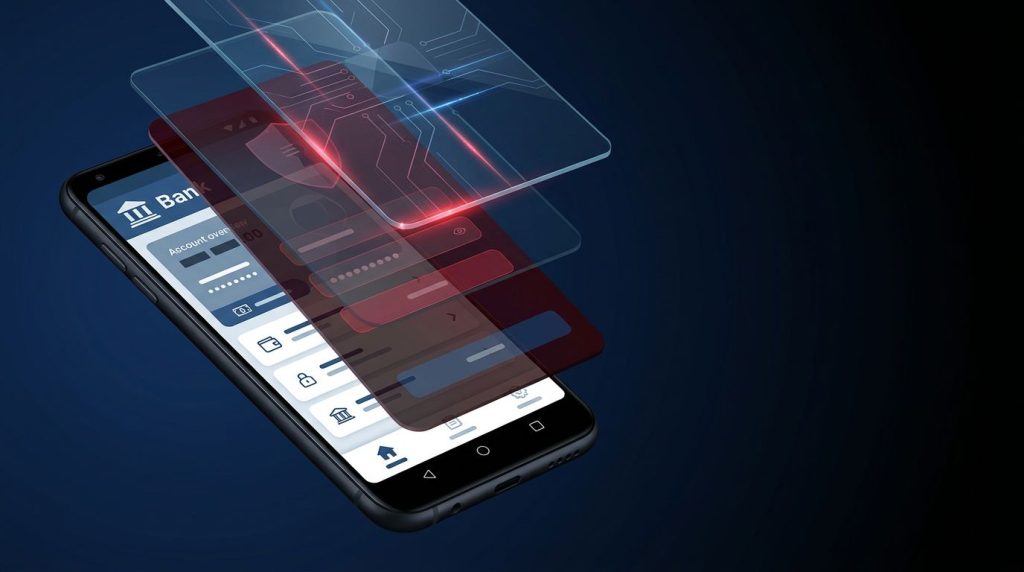
A fake banking screen can look real enough to capture your password before you notice anything is wrong. Android overlay attacks exploit that moment of trust by placing deceptive content over a legitimate app.
The attacker may not need to break Android itself. An unexpected permission request from an unfamiliar app is a warning sign, especially when the requested access seems unrelated to its purpose. Knowing the warning signs helps you protect your accounts and devices.
Key Takeaways
- Android overlay attacks place deceptive content over a legitimate app to capture credentials, redirect taps, or trick users into approving sensitive actions.
- Overlay access is not automatically malicious, but unfamiliar apps that request it—especially alongside Accessibility or other powerful permissions—deserve scrutiny.
- Check “Appear on top,” Accessibility, installed apps, and Play Protect when an unexpected screen or permission request appears; remove suspicious apps and change exposed passwords from a trusted device.
- Android 12 and later can hide third-party overlays when app developers use
Window.setHideOverlayWindows(true), but this protection depends on app support and current security updates. - Developers should combine overlay blocking with touch filtering, safe failure for obscured input, and biometric or device-credential confirmation for high-risk actions.
What an “overlay attack” Actually Does
An overlay is a window that appears on top of another app. Android allows overlays for valid reasons. Chat bubbles, screen filters, password managers, accessibility aids, and call-identification tools may all need limited on-screen access.
A malicious app can turn that feature into a disguise. It may place a transparent layer, fake login form, or misleading button over a banking app, payment app, or Android settings screen. You see a familiar user interface, but your taps and typed information go somewhere else.
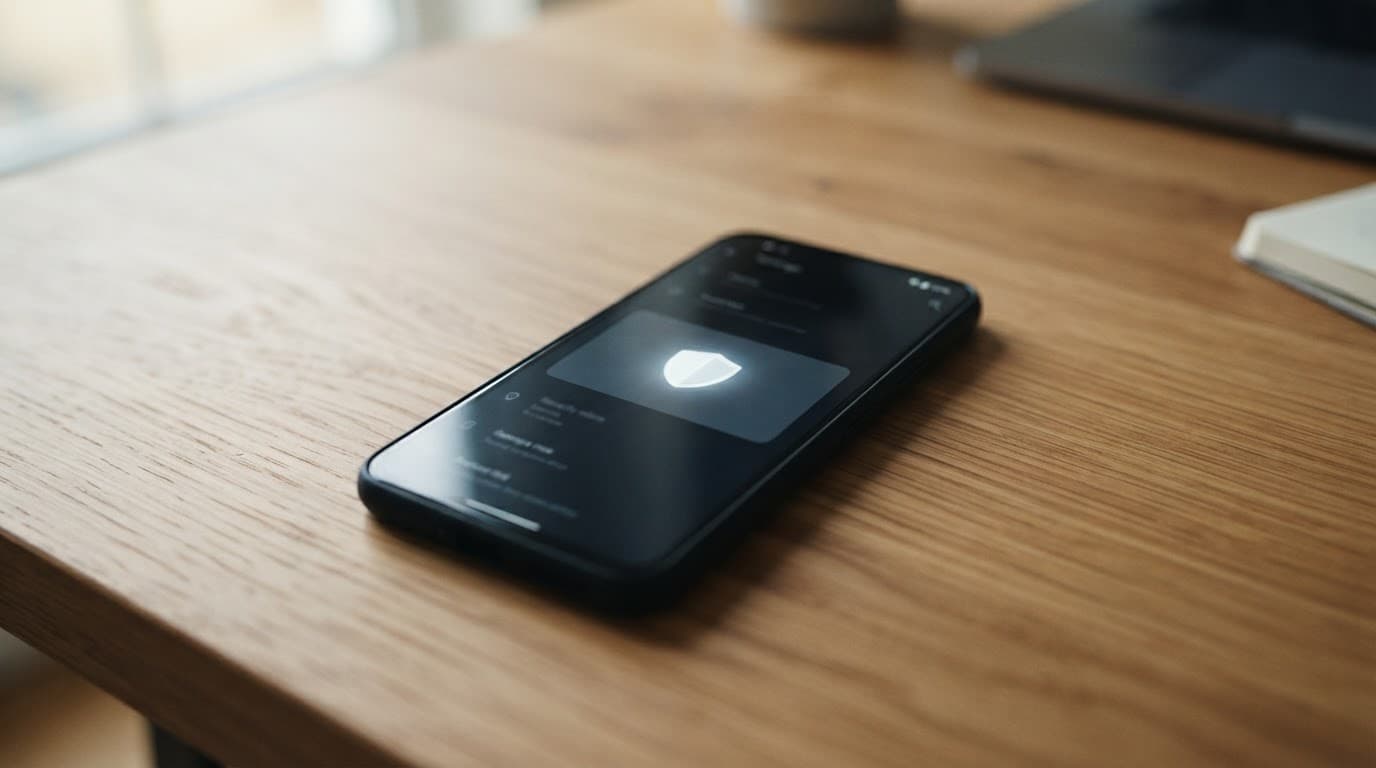
Android classifies the usual overlay capability under the SYSTEM_ALERT_WINDOW permission, which identifies a system alert window. The Android window manager layers these windows, and users may see the setting as “Appear on top” or “Draw over other apps.” Because overlays can cover sensitive screens, Android treats this as a special permission rather than a normal permission request.
Google’s security guidance describes the core risk clearly: an attacker hides or obscures a security-relevant control, then tricks a person into tapping it.
A legitimate permission can still be abused
An app with overlay access isn’t automatically dangerous. For example, a screen reader may present a control above another app. A password manager may show an autofill prompt. An IT support tool may show a connection notice on a company-owned phone.
Context matters. A calculator, wallpaper app, flashlight, or random game rarely needs to appear on top of every other app. The concern rises when the same app also asks for Accessibility access, notification access, device administrator rights, or presents a permission request to install unknown apps.
Overlay permission is not proof of malware, but it deserves the same scrutiny you would give an app that can read your screen or control your taps.
Overlay attacks and tapjacking are related, but different
An overlay attack describes the deceptive window itself. Tapjacking describes the outcome, where an attacker redirects a touch event toward a button you didn’t mean to press.
A full occlusion overlay covers a target screen with a convincing imitation. It often targets account logins or payment confirmation screens. A partial occlusion attack leaves part of the real app visible, then hides or distracts from a permission button beneath the overlay.
Both methods rely on visual trust. The user believes they are interacting with a bank, Google setting, or familiar app. The attacker relies on speed, distraction, and a screen that looks almost right.
How a Malicious App Stages an Overlay Attack
Most attacks begin before the overlay appears. The app first needs installation, then a plausible reason to gain special access. It may pose as a utility, delivery tracker, update tool, PDF reader, game mod, or security app, arriving through a legitimate-looking Google Play listing or an unofficial source.
After installation, the malicious app may push the user to enable “Appear on top.” It may also request access to an accessibility service with misleading wording. Accessibility features help users operate their devices, but abusive apps can inspect visible interface elements and automate actions.
Watching for the target app
Attackers want to know when a useful target app opens. They may use Usage Access to monitor when the target becomes visible and record its foreground activity. This can reveal when a banking app or payment service reaches the foreground.
Modern Android restrictions make older techniques less dependable. For example, getRunningAppProcesses() no longer offers the broad visibility it once did. However, Usage Access can expose package usage stats, while notifications, accessibility events, and timed prompts can still identify the active package and its foreground activity.
Once the target’s foreground activity is confirmed, the attacker can draw a deceptive window with TYPE_APPLICATION_OVERLAY. The window may imitate the victim app’s colors, logo position, keyboard flow, and sign-in fields. The attacker can then capture sensitive data, including usernames, passwords, card details, and one-time codes.
Historical research such as Android apps in sheep’s clothing showed how standard APIs and permissive app capabilities could support convincing disguises without a system-level exploit.
Activity injection versus view injection
A fake screen doesn’t always use the same technique. Some malware launches an entire lookalike activity. Other threats place a view over the legitimate app so it remains open below it.
| Technique | What the user sees | Common risk |
|---|---|---|
| Activity injection | A full-screen imitation that causes full occlusion of the expected app view | Credential theft through a cloned sign-in screen |
| View injection | A fake panel, form, or button that creates partial occlusion of the real app | Stolen taps, permission approval, or input capture |
| Task hijacking | A malicious activity inserted into an app’s task flow | A trusted app appears to open an attacker-controlled screen |
Activity injection creates a full-screen imitation, while view-based deception leaves partial occlusion and keeps the legitimate app open below.
Task hijacking issues, including attacks discussed alongside Strandhogg, are adjacent to overlay abuse. They can create the same user experience: a trusted icon opens what looks like the right app, yet the visible screen belongs to another package. Task hijacking can mimic activity injection by placing an attacker-controlled screen in the trusted app’s task flow.
Older Android versions also had a Toast overlay weakness. A custom view used in a background toast could be abused to show attacker-controlled content without the same normal overlay approval path. Android 8.0 hardened this area, but older unpatched devices remain a higher risk. A technical explanation of Android tapjacking shows why legacy permission behavior still matters when organizations support aging devices.
Android 12 Through Android 16: What Has Changed
Android has made deceptive overlays harder to abuse, but no operating system can prevent every deceptive screen or poor installation decision. Android 12, also called API level 31, gave app developers a direct way to hide non-system overlays during sensitive flows.
The key method is Window.setHideOverlayWindows(true). When a supported app calls it while its sensitive activity is visible, Android can hide third-party overlays. This hide overlay windows capability is a developer-controlled security mitigation, not a complete solution. It is stronger than merely checking a tap after an overlay appears.
This protection applies to Android 12 and later, including current Android 13, Android 14, Android 15, and Android 16 devices. However, it only helps when the app developer has implemented it and the phone runs current security updates.
A phone with an old security patch can retain unrelated flaws that weaken the platform’s defenses. Install monthly Android updates when your manufacturer provides them, and don’t assume a recent Android version alone blocks fraudulent user interfaces.
Security vendors still document modern variants because attackers combine overlays with accessibility abuse, fake installers, and account theft. Guardsquare’s overview of overlay defenses makes the practical point: sensitive apps should block overlays where possible and treat UI deception as part of their threat model.
How to Spot and Remove a Malicious Overlay App
You don’t need to panic whenever a bubble or small floating control appears. Check whether full occlusion replaces the expected view or partial occlusion covers only part of it. Then review permissions, timing, and behavior that don’t match the app’s stated purpose.
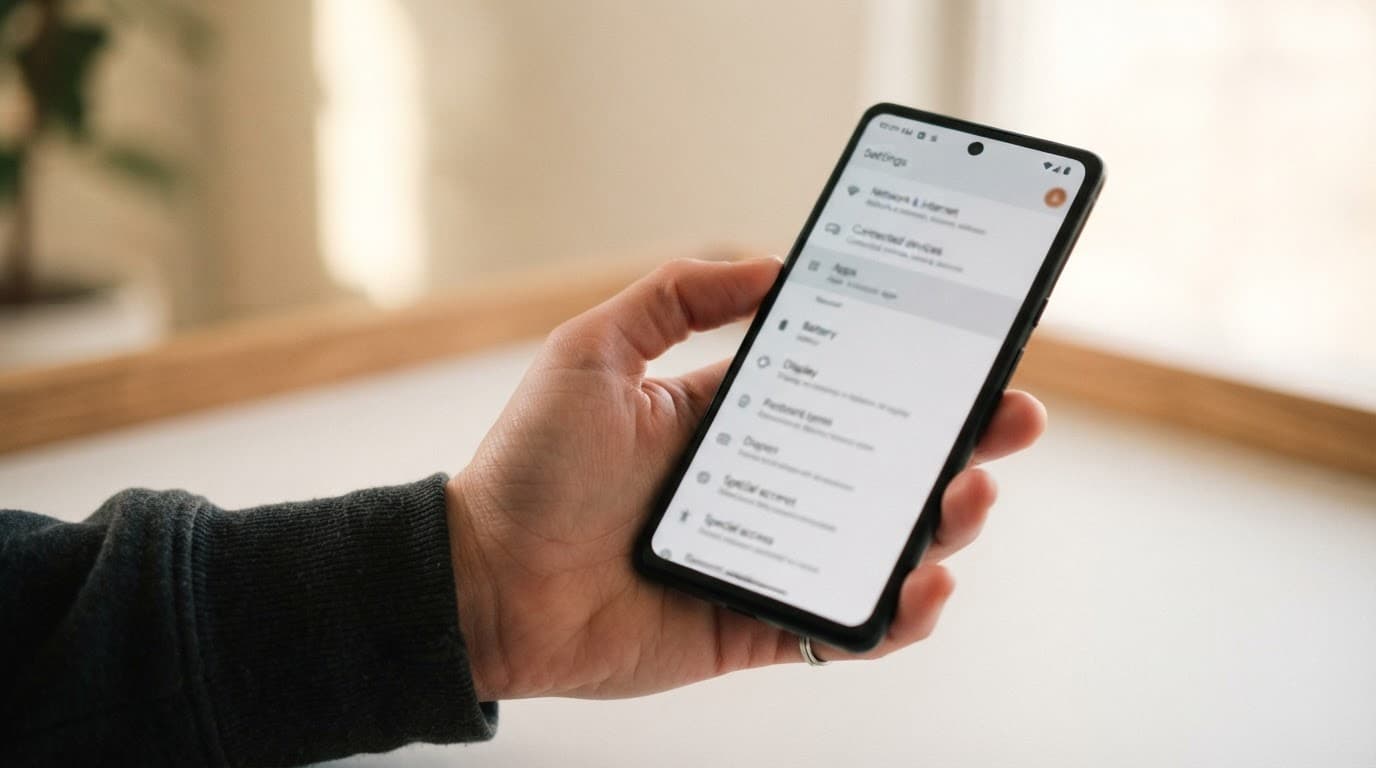
Be cautious if a new app shows an unexpected permission request to appear on top of other apps after installation. The same applies when it directs you to Accessibility settings, claims it needs broad control to “activate,” or shows a login page on top of your banking app.
Use these steps when something feels wrong:
- Open Settings, search for “Appear on top” or “Draw over other apps,” and revoke access for anything you don’t recognize. Android menus vary by manufacturer, but Special App Access is the usual location.
- Review Accessibility settings. Turn off any accessibility service you didn’t intentionally enable. A service with a vague name, generic icon, or no clear accessibility purpose deserves attention.
- Check the installed app list for unfamiliar utilities, cloned apps, and packages that may support activity injection. Also look for apps installed outside the official app store. Remove suspicious packages, then restart the phone.
- Run Google Play Protect from the Play Store and install available Android and manufacturer security updates. If an app resists removal, restart in Safe Mode and uninstall it there.
- Change important passwords from a separate, trusted device if you typed them into a suspicious screen. A suspicious screen may enable credential theft or expose sensitive data. For financial accounts, contact the bank through its official number or website and review recent transactions.
A fake bank screen often has small clues. The app may open after an odd delay, its keyboard may feel different, or the system back button may not behave normally. Still, visual inspection can’t prove safety. Close the screen rather than entering credentials when a request appears unexpectedly.
Parents and IT administrators should also review devices they manage. Look for new accessibility services, unknown-device administrator apps, and special permissions that appeared without a documented reason. A managed-device policy should limit installations to approved sources and record which support tools have overlay access.
Building Apps That Resist Full and Partial Occlusion
Developers should protect the moments where a single tap can transfer money, authorize a new payee, disclose a recovery code, or change account security. This security mitigation must cover the whole flow, including partial occlusion, not only the final “Confirm” button. A completely covered high-risk flow is full occlusion, and it needs the same fail-safe treatment.
For Android 12 and later, call window.setHideOverlayWindows(true) to hide overlay windows when a high-risk activity becomes visible. Use it for sign-in, payment confirmation, account recovery, identity verification, and permission-sensitive actions. Remove the restriction only when an overlay is genuinely needed for an accessible, documented feature.

Filter risky touches on older devices
Touch filtering remains useful for devices below Android 12, including as a fallback for full occlusion, and for controls that need tighter handling. Classic Android Views can use android:filterTouchesWhenObscured="true" in a layout to filter touches when obscured, or call setFilterTouchesWhenObscured(true) on a sensitive view.
That setting rejects input when another window obscures the view. It helps filter touches when obscured during partial occlusion and works well for buttons that approve a transfer, enable device administration, or reveal account data. Developers can also override onFilterTouchEventForSecurity() to log or reject suspicious input under a policy that fits the app.
For more control, inspect MotionEvent flags such as FLAG_WINDOW_IS_OBSCURED and FLAG_WINDOW_IS_PARTIALLY_OBSCURED. A nearby overlay and one sitting directly above the touch point can produce different signals during partial occlusion. A suspicious touch event should fail safely when the app cannot trust the input.
Jetpack Compose apps still benefit from window-level overlay blocking. Compose doesn’t provide a direct per-button replacement for every legacy View touch-filter setting, though a custom view can offer finer control. On older Android versions, teams can enforce an app-level touch policy in the hosting activity, then test Compose controls under partial occlusion.
OWASP provides a useful overlay-attack testing reference for validating these protections during mobile security reviews, including partial occlusion scenarios.
Add a trusted confirmation step
Overlay protection should sit alongside multi-factor authentication. Use BiometricPrompt for biometric verification or a device credential check before high-value actions, especially after a new payee, recovery method, or large transfer request.
Android renders the biometric prompt outside the app’s ordinary view hierarchy. It can reduce approval-by-tap risk, but it can’t undo credentials already entered into a convincing fake form.
Apps should also show the sensitive data involved, such as transaction details, again after authentication and before submission. Keep the confirmation concise, show the intended recipient and amount, and reject a request if the app loses focus at a sensitive moment.
Monitoring Tools, Spyware, and Authorized Security Testing
A legitimate phone monitoring tool has a narrow, disclosed purpose. Parents may supervise a minor’s device where local law permits it. Employers may manage company-owned phones with clear written policies. A family-safety or mobile-device-management app should identify itself, explain its permissions, and remain visible to the device user.
Covert surveillance changes the legal and ethical picture. Covert spyware is a form of mobile malware that may hide access to messages, location, recordings, or screens. A product marketed as a “Spy app for android and Iphone” should not be treated as harmless. Installing it on another adult’s phone without informed permission can violate privacy laws and destroy trust.
The same rule applies to a so-called mobile hacking tool. Don’t use one to access an account, device, or network unless you own it or have explicit authorization. Organizations planning a controlled security assessment should define the scope, systems, timing, and reporting rules before using a Pro Ethical Hackers For Hire service.
Avoid downloads that market covert remote control as a feature. A page inviting users to Download Pathfinder Rat deserves extra scrutiny, because remote-access software can expose private information and give attackers a path into the device.
Security researchers sometimes use privacy networks for lawful research. Verified Tor Onion Links may help locate research resources, but anonymous infrastructure does not make covert surveillance or unauthorized access lawful.
Frequently Asked Questions
What is an Android overlay attack?
An Android overlay attack places a deceptive window over a legitimate app, such as a banking or payment app. The attacker may use it to capture credentials, redirect taps, or disguise a security-sensitive control.
Is the “Appear on top” permission proof that an app is malware?
No. Legitimate tools such as password managers, screen readers, and call-identification apps may need overlay access. However, an unfamiliar app with no clear reason to appear over other apps should be investigated, especially if it requests Accessibility access or other powerful permissions.
How can I remove a suspicious overlay app?
Open Settings and review “Appear on top” or “Draw over other apps,” then revoke access you don’t recognize. Also check Accessibility services, remove unfamiliar apps, run Google Play Protect, install updates, and use Safe Mode if an app resists removal.
How does Android 12 help prevent overlay attacks?
Android 12 introduced Window.setHideOverlayWindows(true), which allows supported apps to hide third-party overlays during sensitive activities. It is not a complete solution because the app must implement it and the device should have current security updates.
What should developers do to protect sensitive actions?
Developers should block overlays during sign-in, payments, account recovery, and other high-risk flows. They should also filter touches when views are obscured, fail safely when input cannot be trusted, and require biometric or device-credential confirmation before valuable actions.
Keep the Screen You See Worth Trusting
Overlay abuse works because a familiar-looking screen can make an overlay attack in a banking app feel routine. It can use full occlusion to hide what is underneath or partial occlusion to disguise part of the screen.
Review special permissions, avoid unknown installers, install apps from Google Play, and keep your phone updated.
For app teams, hiding overlays during high-risk flows remains the strongest practical safeguard on Android 12 and newer. Combine it with touch filtering on older devices and a trusted confirmation step for sensitive actions.
An unexpected prompt should fit the app in front of you. When it doesn’t, close the screen and investigate before you tap.