
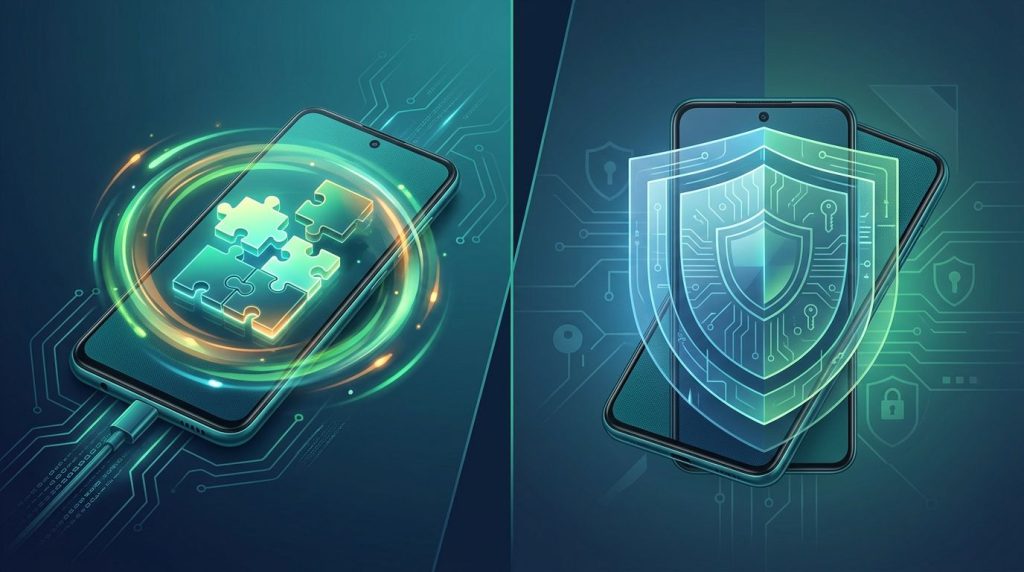
An Android phone can show a recent modular update date while its broader patch level is months old. The Settings app lists two maintenance dates, but they follow different schedules.
A full Android OS release upgrades the platform on one schedule. The Play system channel refreshes selected modules separately, while the device’s patch level covers broader platform and hardware-related fixes. A current modular date doesn’t prove the broader device patch level is current.
How the Android update channels differ
Google Play system updates and Android security updates reduce risk, but they have different owners, scopes, and delivery methods. Project Mainline supports selected modules, while a complete Android OS release is broader still.
| Update type | Main coverage | Usually delivered by | Where to check |
|---|---|---|---|
| Play system update | Selected Android system modules | Play system channel, or an OEM OTA | Android version or update settings |
| Android security patch | Android platform fixes, plus device and vendor fixes where applicable | Phone maker, often with carrier approval | Android security update status |
| Full Android OS update | New Android release, platform changes, device features, or developer features | Phone maker and sometimes carrier | System or software update settings |
| Google app or component update | Play Store, Play services, WebView, Android System Intelligence, and other apps | Google Play Store or device component channel | Play Store and app settings |
Platform and vendor fixes may arrive with a full OS update, but they can also arrive on their own. The Play system channel delivers selected module-level bug fixes without changing the Android version number.
The two status dates are not interchangeable
In the Settings app, the Android security update date indicates the device’s installed OS patch level. Google publishes monthly Android Security Bulletins that describe fixes associated with those levels.
The Play system update date indicates the installed Mainline package level. It doesn’t confirm that the device has received the latest OEM fixes.
A current Play system date doesn’t prove that the device’s OEM patch level is current. Each status line answers a different security question.
Project Mainline updates modular Android components
This architecture changed how Google maintains portions of Android, since many fixes once waited for an OEM’s firmware update. Mainline separates eligible Android system modules from the firmware image. These modules can follow a different schedule than broader system updates delivered in a full firmware release.
What Google Play module updates can change
Google’s Mainline documentation explains that eligible modules can be delivered through the Google Play system update feature or a partner’s OTA process. The eligible set varies by Android release and device.
Examples include parts of media handling, connectivity, permissions, cryptography, and the Android Runtime. These components can receive module-level bug fixes without waiting for a major Android release. Google system-component release notes may also name categories such as Device Connectivity, Account Management, Digital Wallet, Fast Pair, Quick Share, and Android System Intelligence, with coverage varying by item and phone.
However, Android system modules aren’t eligible on every device, and phone coverage doesn’t automatically apply to Wear OS watches. Modems, camera firmware, display drivers, bootloaders, and many vendor-specific components remain under the manufacturer’s control.
Mainline packages install as a set
Google packages related Mainline modules so Android can install and roll them back atomically. That means the package either completes as a compatible group or returns to its earlier state.
Some downloaded Mainline packages need a restart before Android activates them. If Settings asks you to reboot, do it when you have a few uninterrupted minutes. The reboot activates the downloaded package, so its bug fixes can take effect.
How to check both update channels on Android
Menu names vary by manufacturer and Android version. The Settings app provides standard paths for checking both dates, including Google Play system updates, without a third-party utility.
Check the security patch and Play system status
Google’s Android update instructions recommend these steps:
- Open Settings, then tap About phone or About tablet.
- Select Android version to view the Android version, build number, Android security update, and Google Play system update date.
- Return to Settings and open Security & privacy, then System & updates when that menu is available.
- Tap Security update to check for an OS security patch.
- Tap Google Play system update to check the Mainline update path.
- Install available downloads over a stable connection, then restart your device when Android requests it.
On some phones, the path appears as Settings > System > Software updates. The Settings app may also combine the checks under About phone > Software information.
Update apps separately from the system
The Google Play Store’s “Update all” button handles apps. It doesn’t replace a Google Play system update or an Android security patch.
Google Play services, Android WebView, Android System Intelligence, and Google Wallet can each follow their own update path. Their separate releases can include important bug fixes. The Google System Services release notes cover changes across several Google-provided components, so they’re broader than Mainline alone.
Check the app marketplace regularly, especially for Android WebView and browser updates. Android WebView processes web content inside many Android apps, so leaving it outdated can create avoidable exposure.
Why update timing differs by phone and carrier
Google can publish an Android Security Bulletin, but the update still needs to reach your exact device. The path for system updates often includes the chipset vendor, phone manufacturer, carrier, regional certification, and staged rollout controls.
Publication of a bulletin doesn’t prove that a specific handset has installed it.
OEM support policies set the practical deadline
Pixel, Samsung Galaxy, Motorola, Xiaomi, and other Android brands publish different support promises for different models. A flagship may receive patches for years, while a budget or older model can reach end of support much sooner.
Carrier-branded versions can also follow a different schedule from factory-unlocked models. The same phone name isn’t always the same update experience.
When shopping for a new phone, check the manufacturer’s written system update policy for the exact model. That policy describes eligibility and cadence, while the date in Settings proves installation.
A phone that no longer receives OEM software updates may still receive modular bug fixes. However, those fixes can’t cover unsupported firmware or every Android OS issue.
Use patch levels, not promises, to judge status
A vendor’s monthly update claim doesn’t tell you whether your device has installed the update. The security patch date in Settings shows what reached the phone.
For context, the July 2026 Android Security Bulletin states that levels dated 2026-07-05 or later address July’s listed issues and earlier patch-level issues. That doesn’t make 2026-07-05 a universal target for every handset, carrier, or region. It shows why the patch-level date matters.
Both update streams matter for malware resistance
Attackers look for weak points, and outdated software creates more of them. System updates include operating-system patches for Android framework code, system libraries, kernel areas, and manufacturer-supplied components. Modular updates can maintain supported components more quickly, while safe app and account habits reduce other risks.
A Play update cannot patch every vulnerability
Google Play system updates help narrow exposure between larger firmware releases. A component update may deliver bug fixes for a supported module, but it can’t update all hardware-specific code or replace an OEM’s operating system patch. Keep Google Play services and Android WebView current alongside Play Protect; they can affect app behavior and exposure but don’t replace an OEM patch.
Android malware can also rely on harmful apps, deceptive permission prompts, or stolen credentials instead of an unpatched OS flaw. A remote access trojan, often called a RAT, may seek broad access to messages, files, notifications, or accessibility features. Keeping Android current reduces one class of risk, but it doesn’t prevent unsafe downloads, phishing, or every RAT attack.
Google’s malware-removal guidance pairs Play Protect with current security updates, then advises removing apps you don’t trust. That combination is more reliable than relying on a single security product.
Privacy controls need regular review
Review installed apps after each device handoff, repair, or unexpected battery drain. Remove unused apps and inspect powerful permissions, including device administrator access, notification access, accessibility services, and permission to install unknown apps.
A legitimate phone monitoring tool should operate openly, use the minimum access needed, and protect collected data. For family use, parents should explain what data is collected, why it is needed, who can view it, and when monitoring ends.
Safe monitoring and parental-control choices
Monitoring software cannot repair an Android vulnerability. It may help a parent set limits or locate a lost family device, but it cannot replace system updates, Android patches, screen locks, or careful app choices.
Consent comes before features
Searches for covert monitoring apps often mix very different products and legal rules. Android and iPhone use different security models, and broad vendor marketing doesn’t make covert monitoring lawful or safe.
For a child’s supervised device, use a transparent family-control arrangement and discuss it as part of device rules. Choose trusted software through the Google Play Store. Components such as Android WebView should come through official update channels. Adults should never install monitoring software on another adult’s device without clear, informed consent. Workplace monitoring also requires documented policy, legitimate business purpose, and compliance with local employment and privacy laws.
Accessibility services deserve added scrutiny because they can read interface content and perform actions for users. Android’s accessibility service documentation shows why this capability exists, but it also explains why users should grant it only to software they trust.
Avoid products marketed as hacking tools
A covert keylogger or remote-control app installed without permission crosses a line from administration into abuse. It also creates a new attack surface on the phone.
Don’t install an unvetted program promoted as Download Pathfinder Rat. In security work, “RAT” commonly means remote access trojan. Unauthorized software defeats the trust that patching is meant to build.
Authorized penetration testing requires written permission, a defined scope, controlled tooling, and a remediation report. A promotional service labelled Pro Ethical Hackers For Hire does not replace those safeguards.
Likewise, directories such as Verified Tor Onion Links are not trusted sources for Android installers, updates, or monitoring apps. Get software through an approved enterprise catalog or the manufacturer’s official channel.
A practical maintenance plan for individuals and parents
Security maintenance works best when it becomes routine. Waiting until a phone behaves strangely turns a simple check into a stressful investigation.
Keep a short monthly device routine
Once a month, and after an Android security alert, take a few minutes to:
- Check the Android security update date and Google Play system updates status in Settings.
- Install a pending system update over trusted Wi-Fi, then restart your device when prompted.
- Update Play Store apps and components, especially browsers, password managers, Android WebView, and Android System Intelligence. These updates can include important bug fixes.
- Confirm that Google Play Protect is enabled and remove apps you no longer recognize or use.
- Review accessibility, device administrator, and unknown-app-install permissions.
- Back up photos, documents, and account recovery details before a major OS update.
A recent backup lowers the stakes if an update fails or a device needs a factory reset. It also prevents pressure to keep a compromised or unstable phone in service because important data exists nowhere else.
Set clear family rules before an incident
Parents can make device maintenance part of a shared routine. Review update dates together, explain suspicious download warnings, and set a rule that children ask before installing apps outside the Play Store. On shared devices, review purchase controls, Google Wallet settings, and account recovery details.
For younger children, a managed child account and transparent parental controls are easier to defend than covert surveillance. Review web-heavy apps that use Android WebView, and explain why updates and permissions matter. For teenagers, explain how app permissions, phishing, and account theft work. Respectful monitoring is more likely to build habits that continue when parental controls end.
Android Enterprise update policies for IT teams
For managed fleets, patching is a policy and operations problem. IT needs a system update policy that confirms devices received updates without interrupting a retail shift, hospital workflow, or field deployment.
Use a device policy controller and staged rollout
An enterprise mobility management platform uses a device policy controller, or DPC, to enforce enrollment and management rules on enrolled devices. Start with a pilot group that matches the production fleet, then monitor crashes, authentication failures, peripheral behavior, and line-of-business app performance.
Track at least four fields in inventory: device model, Android version, Android security patch level, and Google Play system update date. Those fields show whether missing system updates reflect an OEM rollout, a Mainline update, or a device that has reached its support limit.
Management tooling cannot create an update that the manufacturer hasn’t released. It can schedule eligible releases on supported enrollment types and devices.
Postpone and freeze updates with limits
Google’s Android Enterprise system update guide describes automatic, windowed, and postponed options for a system update policy. An Automatic update policy fits low-risk fleets, while a windowed policy limits installs to a daily maintenance period, helping shared or kiosk devices avoid disruption during system updates.
Postpone policies have a hard limit of 30 days for each update. A maintenance window shorter than 30 minutes extends to a 30-minute effective window.
Freeze periods require more restraint. Google’s Android Management API policy reference limits each annual repeating freeze period to 90 days and requires at least 60 days between freeze periods. During the freeze window, incoming system updates, including security patches, are blocked.
Use a system update policy for freeze control only during a genuine business-critical event. Record the end date for any freeze periods in change management, then schedule a catch-up installation immediately afterward.
Troubleshoot failed updates without creating a bigger problem
A pending system update does not always mean a phone is compromised. Storage shortages, poor connections, low battery, a pending restart, device management policies, or a paused OEM rollout can all cause delays.
Start with the low-risk checks
Restart your device first if an update has downloaded but will not finish. Then connect to stable Wi-Fi, free storage space, charge the battery, and check the status of both system updates again.
Next, update Play Store apps, including Android WebView and Android System Intelligence, then check software updates separately. Check whether a work profile or its device policy controller is delaying installation under an enterprise system update policy. Avoid factory-resetting a phone as the first response. A reset erases evidence, disrupts users, and may not change the underlying carrier or OEM rollout status.
If an app-specific web-content problem remains, test it after updating Android WebView. Delayed component releases may reflect staged bug fixes and do not, by themselves, prove compromise.
If the security patch remains far behind the vendor’s published support schedule, contact the manufacturer or carrier with the model number, build number, region, and current patch date.
Treat rollback as an admin recovery procedure
Google documents the GPSUR tool, or Google Play System Update Rollbacks, for recovering a device state after a problematic Play system update. The official enterprise guidance frames rollback as an administrator-approved recovery procedure, not a routine fix.
IT teams should document the affected build, update date, device model, symptoms, and approved recovery path before attempting a rollback. Test the process on a non-production device when possible, then confirm the device returns to a supported update state after the incident.
Frequently Asked Questions
Is a Google Play system update the same as an Android security patch?
No. A Google Play system update refreshes selected Mainline modules, while the Android security patch date shows the broader OS patch level installed by the device maker.
Does a current Play system date mean my phone is fully up to date?
No. The Play system date doesn’t confirm that your phone has received the latest OEM, vendor, kernel, modem, or firmware fixes. Check the Android security update date separately.
How can I check both update dates?
Open Settings, then About phone or About tablet, and select Android version. This screen usually lists the Android security update and Google Play system update dates, although menu names vary by device.
Should I restart my phone after a Google Play system update?
Yes, if Android requests a restart. Some downloaded Mainline packages need a reboot before the system activates them and applies their fixes.
Can Google Play system updates keep an unsupported phone secure?
They may continue to update eligible modules, but they cannot replace the device maker’s OS patches or fix every unsupported firmware and hardware component. Use the manufacturer’s support policy and the security patch date to judge whether the phone remains supported.
Keep Both Dates in View
Google Play system updates maintain selected modules through Project Mainline. They don’t cover every firmware or vendor issue.
Check the Android security patch date separately, restart when requested, and keep Android WebView current with app maintenance. Treat apps with broad device access as security decisions. Current software and informed consent are the foundation of safer Android use.