
Giving a child a phone is easy. Agreeing on its boundaries is the harder part.
Google Family Link vs Qustodio is a choice between a free tool built around Google accounts and a paid service designed for deeper, cross-device oversight. Both are parental control apps that can support healthier screen habits and safer browsing, but their approach to privacy, setup, and daily family life is different.
The right choice depends on your child’s age and the Android devices your family uses. It also depends on whether Google Family Link fits your family and how much oversight feels appropriate.
Key Takeaways
- Google Family Link is the better fit for Android-first families that want free, straightforward controls for Google accounts, Play Store approvals, apps, and screen time.
- Qustodio offers broader cross-platform coverage, stronger web filtering, custom routines, detailed reports, location alerts, and optional advanced monitoring through paid plans.
- Family Link is stronger for device and account management, while Qustodio reaches further into behavior monitoring and activity reporting.
- Families can use both services together, but each app should have a distinct role and only one should manage the primary screen-time limits.
- Parental controls work best when children understand what is monitored, why it is monitored, and how the rules will change as they grow.
Google Family Link vs Qustodio: the practical choice
Google Family Link is a sensible free parental control option for families using Android devices. Chromebook support extends its Google account controls to Play Store approvals, screen limits, and location sharing without a subscription.
Qustodio is broader, working across Android, iOS, Windows, macOS, and Kindle Fire devices as a cross-platform solution. It offers stronger filtering, reporting, location alerts, and optional advanced monitoring, but meaningful multi-device coverage requires a paid plan.
Families with iOS devices may instead compare native restrictions with Apple Screen Time. Bark is another broader alternative, but this comparison stays focused on these two tools.
| Area | Family Link | Qustodio |
|---|---|---|
| Setup | Links a parent Google account to a child’s supervised Google account. Best for Android and ChromeOS. | Requires a parent dashboard, a child profile, and an installed child app on each monitored device. |
| Screen time limits | Offers daily limits, Downtime, School Time, bedtime schedules, and remote device lock. | Time limits, routines, and app or game limits vary by plan and platform. |
| App management | Parents can approve Google Play downloads and purchases, see installed apps, and use app blocking when needed. | Supports app rules and blocking, but it can’t manage Google Play approvals as directly as Family Link. |
| Web filtering | Filters Chrome browsing, blocks chosen sites, and can enforce SafeSearch. Coverage is limited outside Chrome. | Uses category-based filtering across 30-plus categories, with custom allow and block rules. |
| Location features | Shows a child’s Android device location when the phone is online and location services are enabled. It has no geofencing alerts. | Offers location alerts and My Places geofencing on eligible paid plans. |
| Monitoring and reports | Shows app activity and time spent in apps. It doesn’t provide detailed social or message reporting. | Provides activity reports, web activity, alerts, and YouTube monitoring on supported devices and plans. |
| Privacy model | Uses the child’s Google account and fewer third-party device permissions. | May require broader Android permissions, including accessibility, usage access, VPN, and location access. |
| Security limitations | Can’t make every browser, app, message, or offline interaction safe. | Broader data collection and permissions require careful configuration and clear explanations. Tamper alerts may depend on the platform and plan. |
| Best fit | Android-first families who want free, clear, account-level parental controls. | Families with mixed operating systems or a need for detailed filtering, routines, and reporting. |
For most Android households, the choice becomes clear once you separate device management from behavior monitoring. Family Link is stronger at the first job. Qustodio reaches further into the second.
Screen time and app management on Android devices

Family Link keeps Google Play under parental control
Google Family Link’s biggest advantage is its close connection to Android and Google Play. A parent can require approval for app downloads, Google Play purchases, and in-app purchases. That matters because a block list only helps after an app is already installed.
Its screen-time tools are also easy to understand. You can set screen time limits, including daily limits, schedule Downtime, lock the device manually, and use School Time to limit distracting apps during set hours. Google’s Family Link tools also let parents view app activity, which can prompt a useful conversation about how a child spends time on a phone.
The trade-off is that Family Link is not a detailed activity-reporting platform. It can show that an app was used, but it does not turn a parent into a silent observer of everything inside that app.
Qustodio gives families more schedule options
Qustodio gives parents more ways to create custom routines across devices. Families can schedule device-free hours, limit certain games, and pause the internet where supported. Rules can also differ for a phone, tablet, laptop, or home computer. This is helpful when one child uses an Android phone while another uses a Windows laptop.
The extra flexibility also creates more settings to maintain. If a child has school work in a browser, music in an app, and messaging with friends, a rigid rule can block normal activity along with distractions. Start with broad routines, then adjust after reviewing a week of actual use.
Qustodio can add app blocking, web filtering, and YouTube monitoring, but it does not replace Family Link’s native Play Store approval process. Parents who value app-by-app download approval may prefer to keep Family Link active for that task, even if they choose it for filtering or reports.
Web filtering and YouTube monitoring are not equivalent
Google Family Link filters browsing in Chrome. Parents can allow all sites, try to block explicit sites, or restrict a child to approved sites. They can also block specific domains and use safe search. That works well when Chrome is the only browser your child uses.
However, Family Link’s web filtering does not offer the same broad category controls as Qustodio. It also cannot promise the same level of coverage inside every browser, social platform, game, or encrypted messaging app. An app block may reduce access, but it does not explain why the content is risky.
YouTube gets its own set of limits. Family Link can help parents manage a child’s supervised YouTube experience or YouTube Kids settings. Depending on age and setup, parents can select content levels and restrict search or viewing options. This YouTube monitoring isn’t a detailed record of every video watched.
Like Apple Screen Time on iOS, Family Link relies on native content restrictions. Families comparing services such as Bark should check each product’s documented app and platform coverage.
Qustodio’s paid service has deeper filtering options. Its category-based approach can restrict topics such as adult content, gambling, violence, and anonymizers, while still allowing specific sites that a family considers appropriate. This is more useful for children who use several browsers or devices.
On higher Qustodio tiers, YouTube monitoring can report supported search and viewing activity. Its social media monitoring and activity reports may flag certain risks, but coverage varies by platform, app version, and plan. Parents should treat these reports as conversation starters, not proof that they know everything happening in a child’s life.
A child who can understand an alert should know what triggers it, what information it shows, and which adults can review it.
Price and device support: free Android controls or paid coverage
Google Family Link doesn’t charge a subscription fee. Its value is strongest when a child uses Android devices or a Chromebook under a supervised Google account. A parent can use Family Link from an Android device or an iPhone, but Family Link cannot supervise iOS devices.
Qustodio is a cross-platform solution for families that use multiple operating systems. It supports Android, iOS, Windows, macOS, and Kindle Fire, although features aren’t identical on every platform. On supported Android hardware, it may offer location tracking, while My Places can serve as a geofencing tool when eligibility requirements are met. Apple’s privacy model restricts third-party access on iPhones and iPads, where families may use Apple Screen Time for native controls.
As of August 2026, Qustodio’s commonly listed annual U.S. prices are $54.95 for up to five devices and $99.95 for unlimited devices. Its free plan covers one device with limited controls. Qustodio’s own pricing pages and app stores have also displayed different plan names and prices, including $59.95 and $104.95 annual options.
Check Qustodio’s current Premium plans before choosing a premium plan, since the price can vary by purchase channel, device bundle, and promotion. Qustodio’s free and Premium comparison is also useful for confirming which features belong to your chosen tier.
Call and text monitoring deserves extra care. Qustodio may offer call and SMS monitoring on supported Android plans, but feature parity differs on iOS. Apple Screen Time provides native controls there, but it doesn’t give third-party apps equivalent monitoring access. Even on Android, parents should confirm exactly what a plan collects before activating it.
Can Family Link supervision end at age 13?
A child does not automatically lose Google Family Link supervision on their 13th birthday. In many countries, turning 13, or reaching the applicable minimum age, makes a child eligible to choose whether to manage their own Google account.
Google notifies parents when that point approaches. The child may decide to continue supervision or take control of their account, depending on their country and account settings. Parents should prepare for that transition before it becomes a surprise.
Google’s Family Link FAQ explains that age rules vary by country. A family agreement that evolves with maturity usually works better than a sudden switch from strict controls to no guidance.
This is also where Qustodio may appeal to families with older teens. Its controls are tied to a service plan and installed profiles rather than only to a Google account’s supervised status. Still, continued monitoring should be based on clear expectations and consent, not on secrecy.
Using Family Link and Qustodio together without conflicts
Some Android families can use both tools. The cleanest setup gives each app a distinct job instead of asking both to enforce the same rule.
- Keep Google Family Link responsible for the child’s Google account, Play Store approvals, purchases, and Android device setup.
- Use Qustodio for cross-platform web filtering, YouTube monitoring, and location tracking if those features meet a real family need.
- Choose one app as the main screen-time clock. Dual limits can produce confusing lockouts when one service permits access and the other blocks it.
- Pick one location dashboard for daily check-ins. If Qustodio’s My Places alerts are useful, treat them as a geofencing tool where supported. Avoid setting overlapping expectations through Family Link location checks.
- Test the setup with your child present. Check school apps, emergency calling, maps, and browser access. If your household also includes an iPhone, review Apple Screen Time there too. Review tamper alerts where your plan and platform support them before relying on the rules during a busy weekday.
Qustodio may request powerful Android permissions to filter traffic and record activity. Don’t disable Android security protections merely to make an app work. Instead, review each permission, understand why it is needed, and remove the service if its access no longer fits your family’s agreement.
The strongest combined setup is usually modest. Family Link handles account controls. Qustodio fills genuine gaps across devices. Neither should become a source of constant alerts that a parent cannot realistically review.
Parental controls are different from covert surveillance
A transparent phone monitoring tool can support family safety when a child knows it’s installed, understands the rules, and can raise concerns. Covert tracking changes the relationship. It can also expose private data, create legal problems, and discourage a child from asking for help when something goes wrong.
Products marketed as a mobile hacking tool or a spy app for Android and iPhone aren’t substitutes for parental controls. Avoid tools that promise hidden message capture, password theft, secret call recording, or undetectable remote access. Those capabilities go beyond ordinary family supervision and can harm children, parents, and others whose information appears on a device.
Qustodio’s advanced Android monitoring features also need boundaries. If your child is old enough to use messaging, explain whether call and text monitoring is enabled. Explain what it collects, why it’s collected, and when you’ll review it. Many families enable stronger monitoring only after a specific safety concern, then revisit the setting once it has passed.
Location tracking needs the same restraint. Checking whether a child arrived at school or came home safely can be reasonable. Tracking every movement, every day, without discussion can feel intrusive and often adds little practical protection.
Secure the Android devices and parent accounts
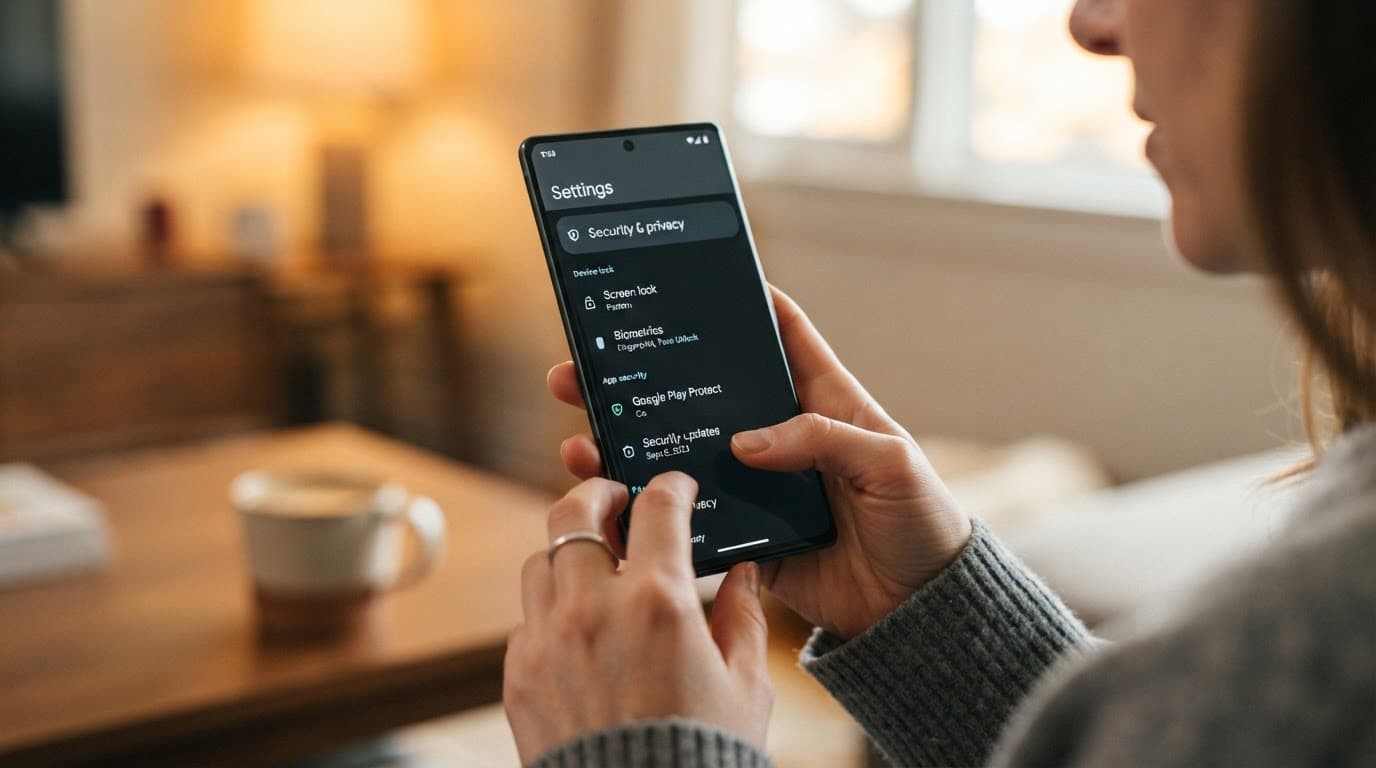
Parental controls cannot fix an insecure phone. Keep Android security updates and Google Play system updates current on every family device. Leave Google Play Protect enabled, and install apps only through trusted app stores.
Review app permissions regularly, especially accessibility access, notification access, location, microphone, camera, device admin, VPN, and usage access. These permissions may support a parental-control service, but they can also give an app significant reach. Check whether it reports permission changes, attempted removal, or disabled protections through tamper alerts. This behavior varies by service, plan, and platform.
Protect the parent Google account with a unique password and multi-factor authentication. A compromised parent account can remove limits, expose family location data, or give someone else control of a child’s device settings. Use multi-factor authentication for Qustodio or another family-management account when available.
Finally, keep recovery phone numbers and recovery email addresses current. Account recovery is part of safety, especially when a child’s phone is lost or replaced.
Frequently Asked Questions
Is Google Family Link or Qustodio better for Android families?
Google Family Link is usually the better choice for Android-first families that want free controls over Google accounts, app approvals, purchases, and screen time. Qustodio is a stronger fit when a family needs cross-platform coverage, deeper filtering, reports, or location alerts.
Can Google Family Link and Qustodio be used together?
Yes, some families can use both services if each one has a distinct job. Family Link can manage the child’s Google account and Play Store approvals, while Qustodio handles broader filtering or reporting, but only one app should be the main screen-time manager.
Does Google Family Link work on iPhone?
A parent can use the Family Link app from an iPhone, but Family Link cannot supervise a child’s iPhone or iPad. Families with Apple devices may prefer Apple Screen Time for native controls or Qustodio for selected cross-platform features.
Is Qustodio worth paying for?
Qustodio may be worth the subscription when a family needs support for Android, iOS, Windows, macOS, or Kindle Fire devices, along with more detailed filtering, routines, reports, or geofencing. Families with only Android devices and basic needs may find Family Link sufficient at no cost.
Does Family Link supervision automatically end when a child turns 13?
No, supervision does not automatically end on a child’s 13th birthday. In many countries, the child becomes eligible to choose whether to manage their own account, although the applicable age and options vary by country and account settings.
Final thoughts
Google Family Link is the better fit for Android-first families that want free, understandable controls over apps, purchases, and screen time. It works best when its Google account limits are paired with clear house rules.
For iPhone households, Apple Screen Time is the more natural built-in choice.
Qustodio earns its subscription when a household needs broader coverage, detailed routines, reports, or geofencing. Its wider access also requires more deliberate privacy choices.
Bark is another alternative to assess using the same criteria: device coverage, monitoring depth, privacy, and cost.
The healthiest setup gives children age-appropriate freedom, explains the safeguards in place, and changes as their judgment grows.